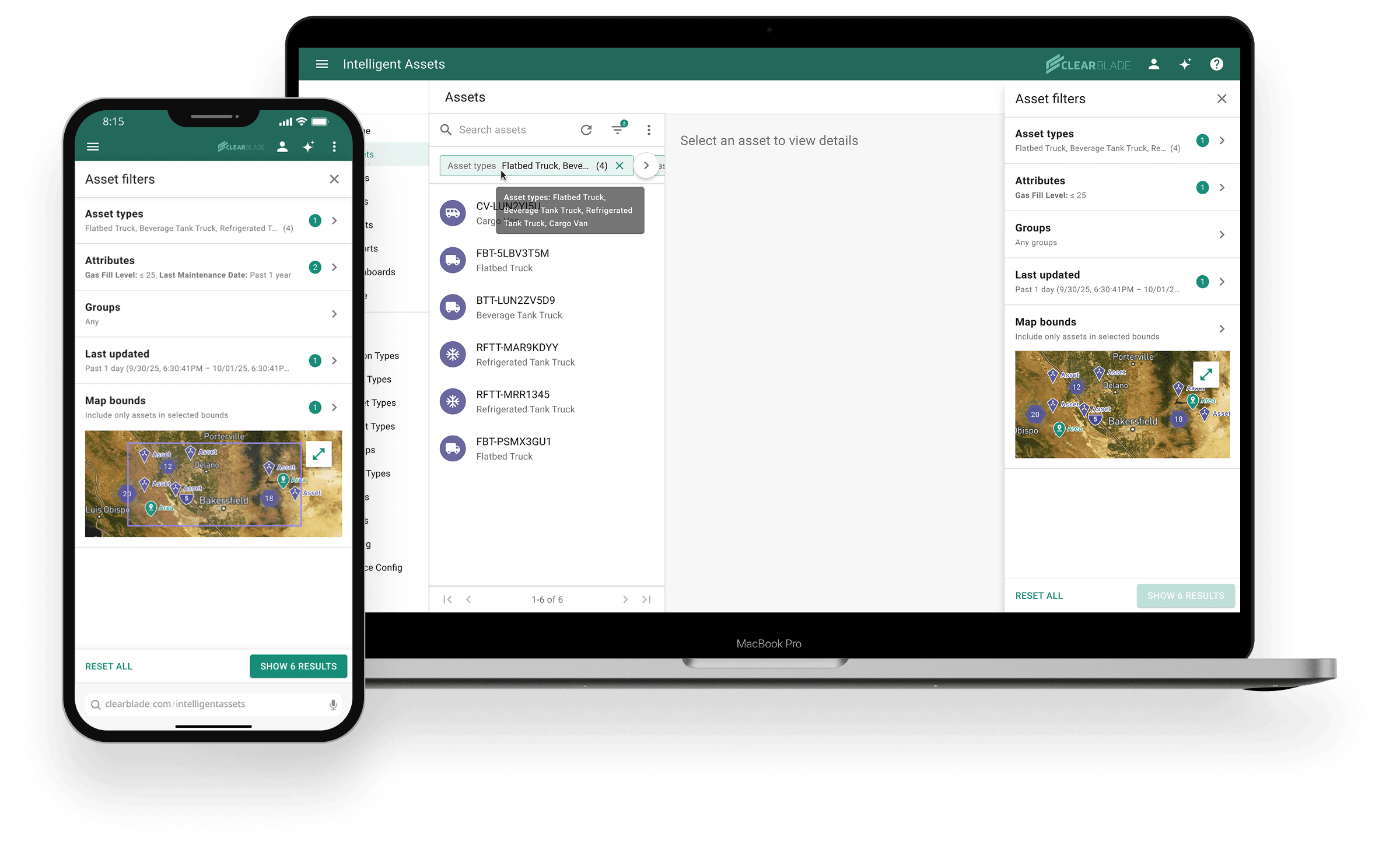
Background
Intelligent Assets (IA) is an enterprise platform used for asset monitoring and automated alerting. Operations teams across industries such as transportation and sustainability rely on IA to manage equipment at scale using IoT sensor data.
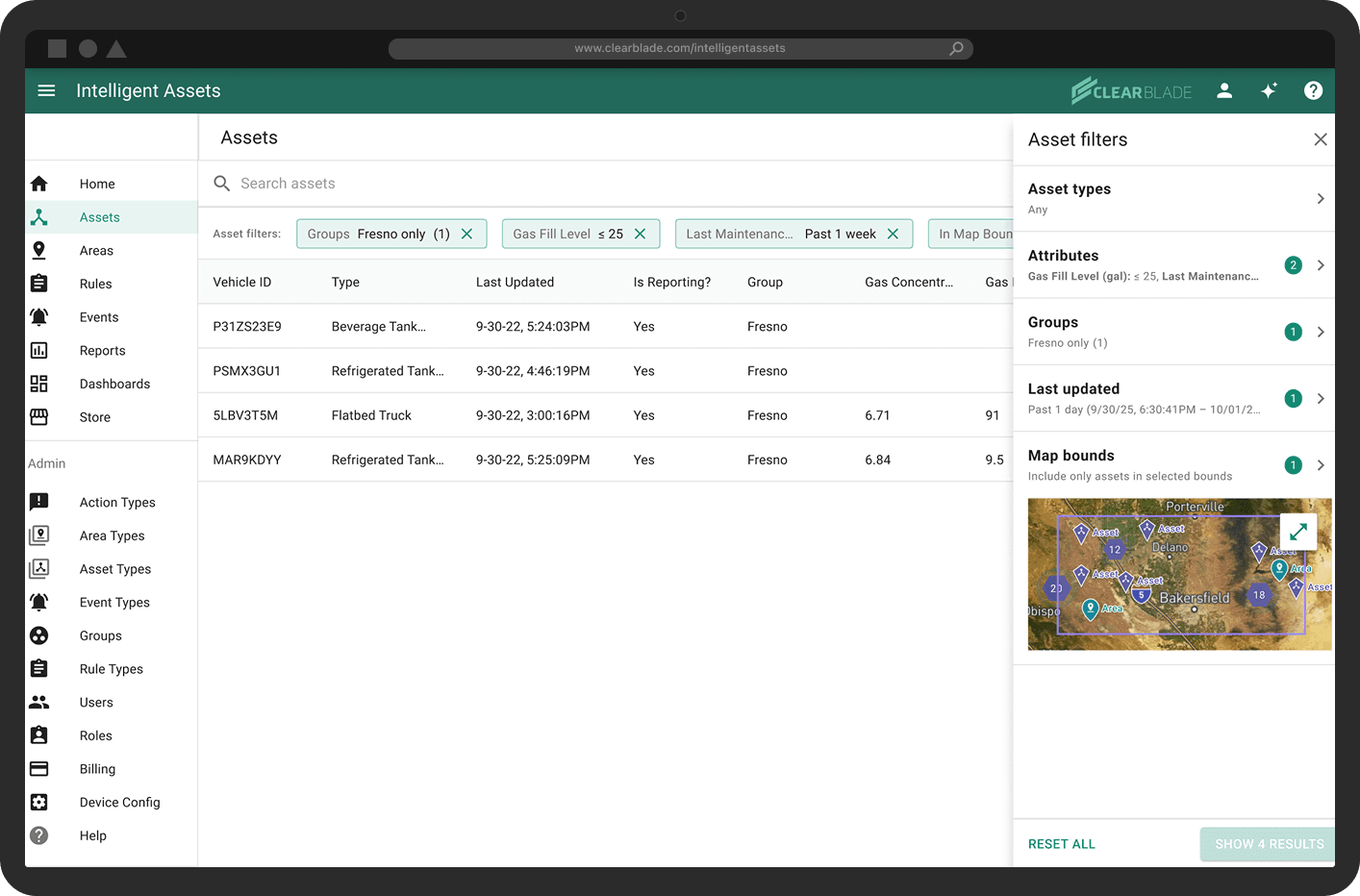
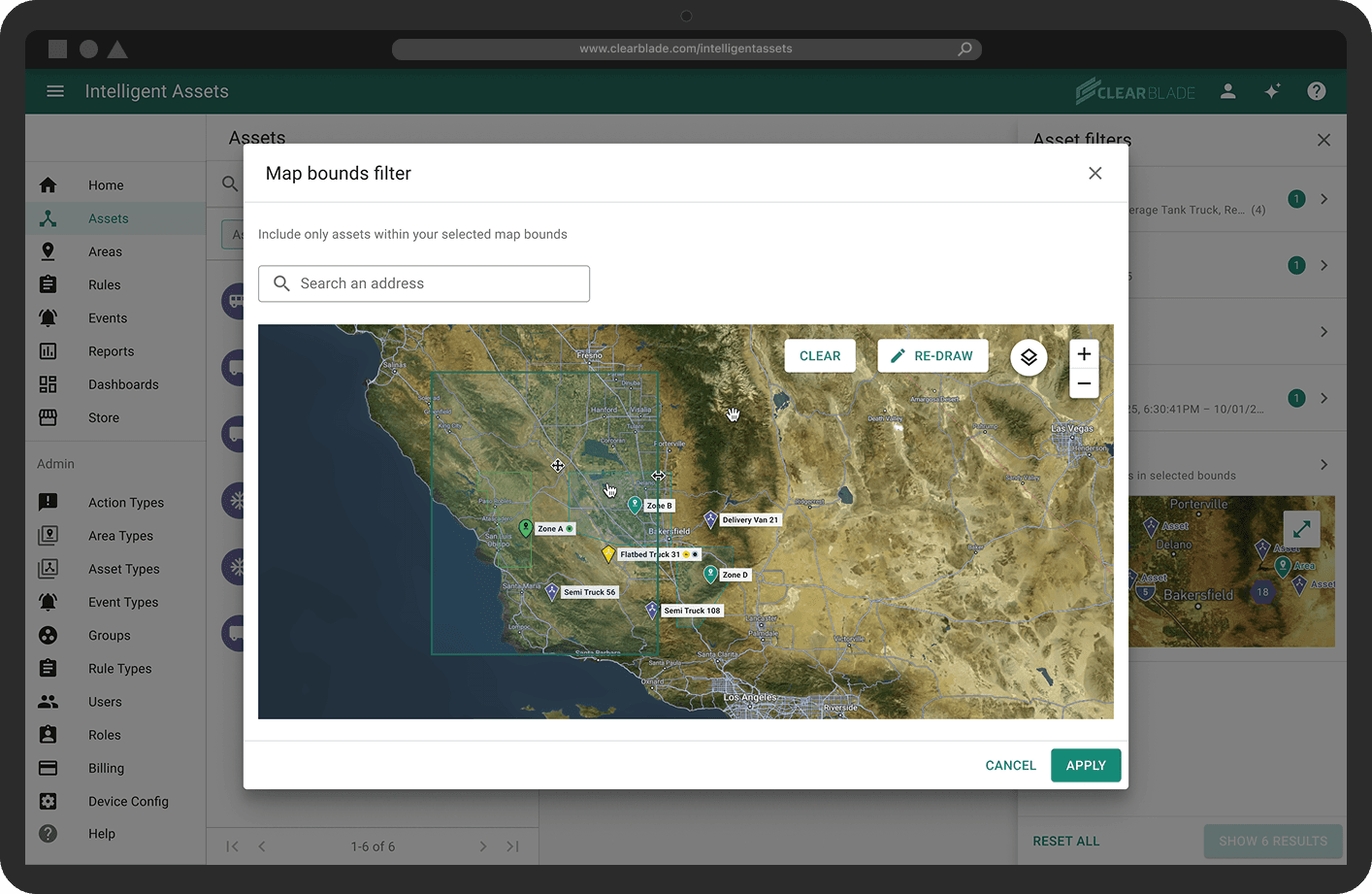
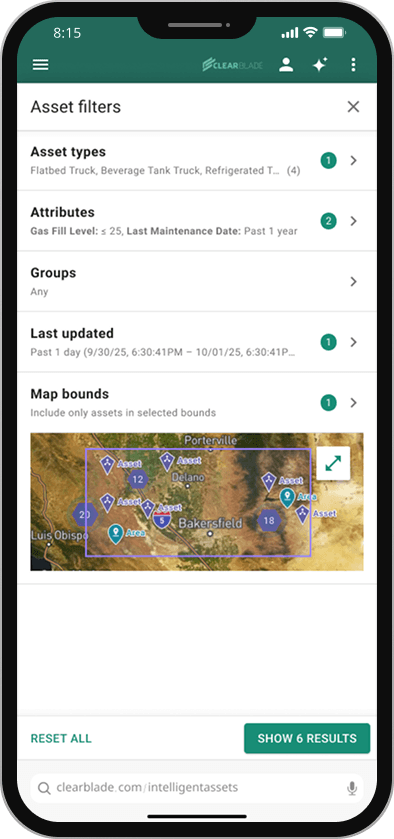
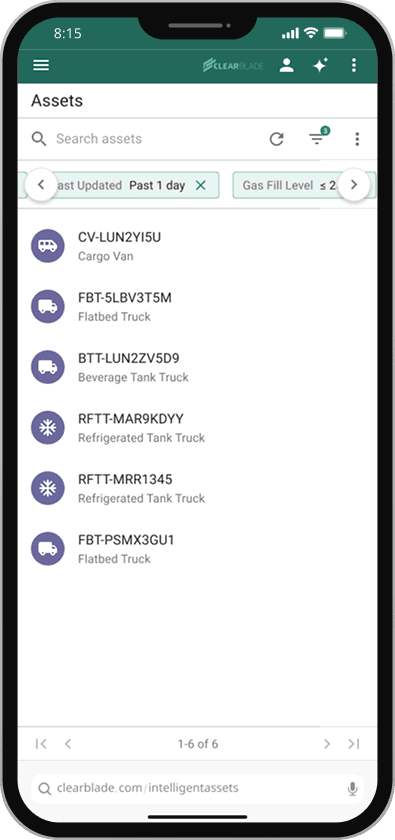
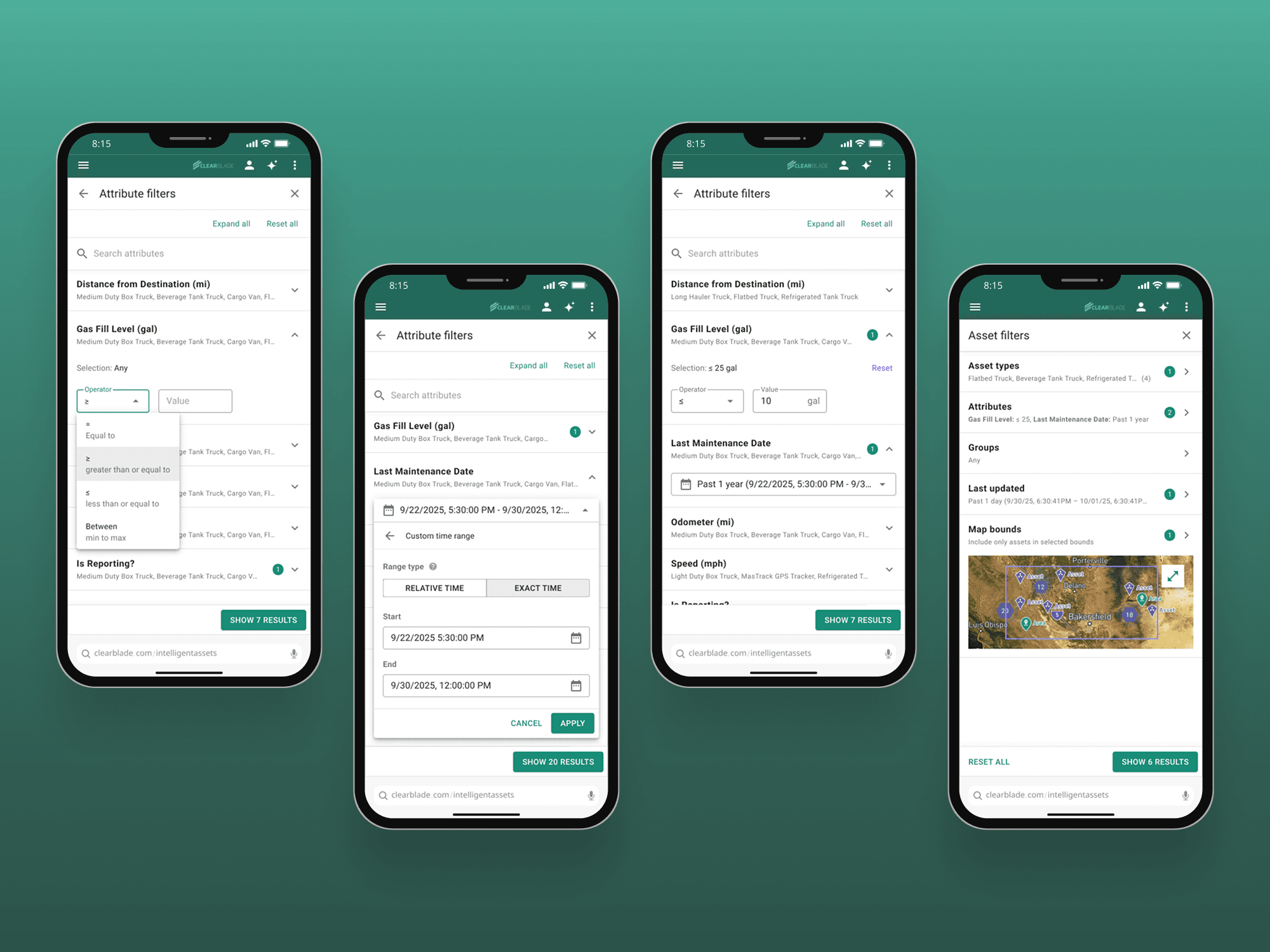
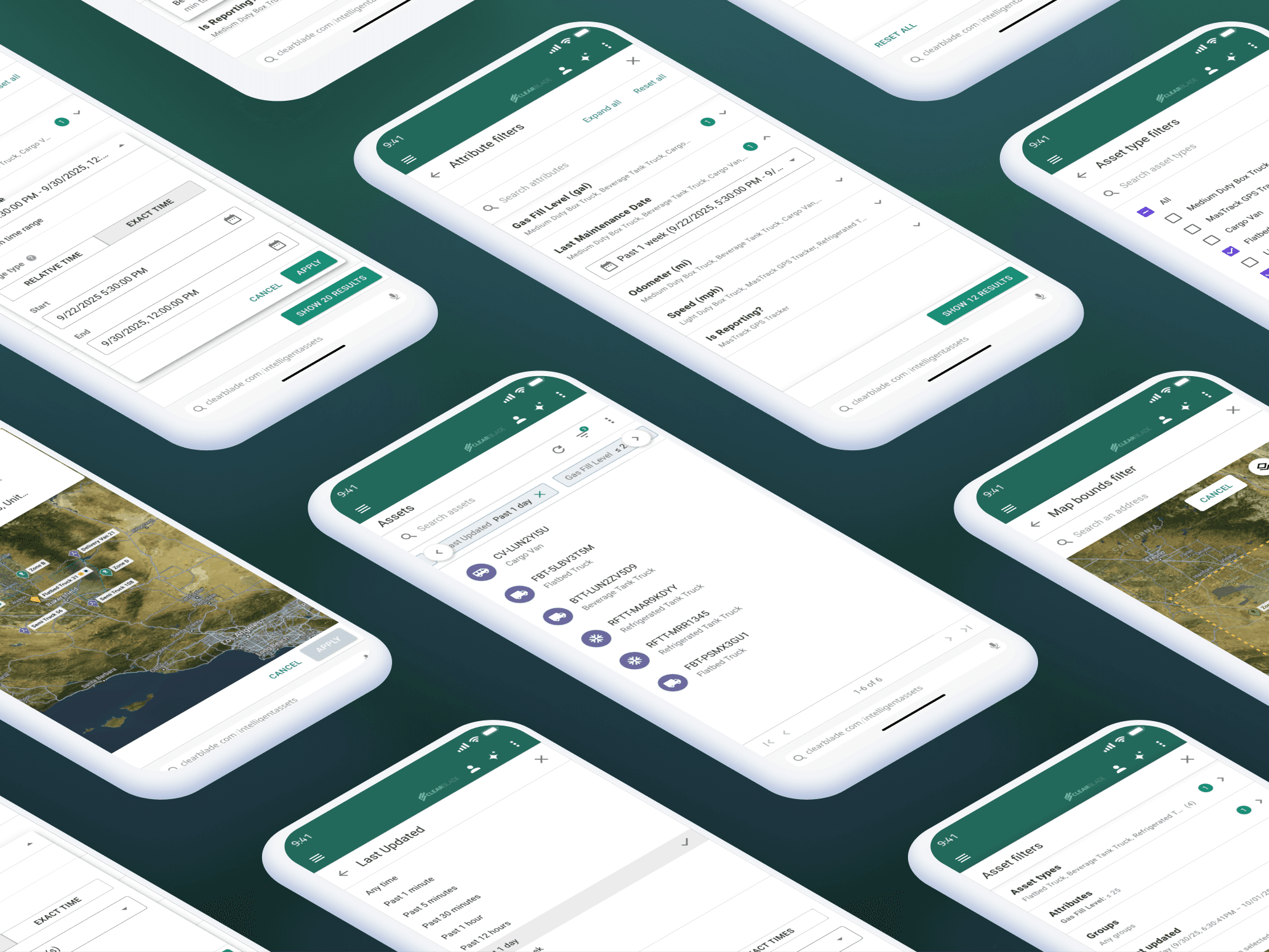
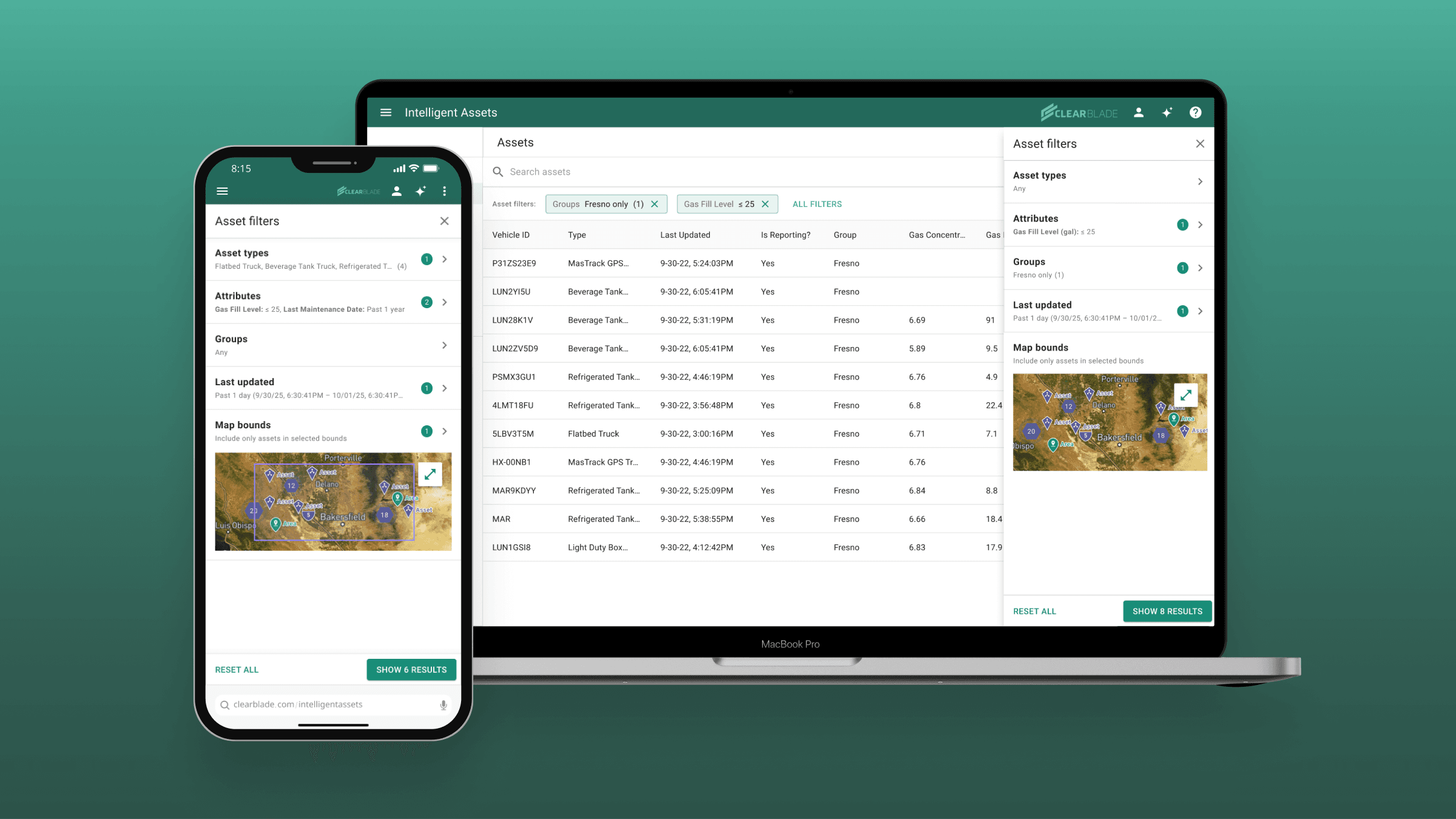
This project focused on redesigning the main search filtering experience in IA, starting with the Assets page. This was a crucial feature that users needed in order to quickly isolate and resolve potentially costly issues occurring on their assets.
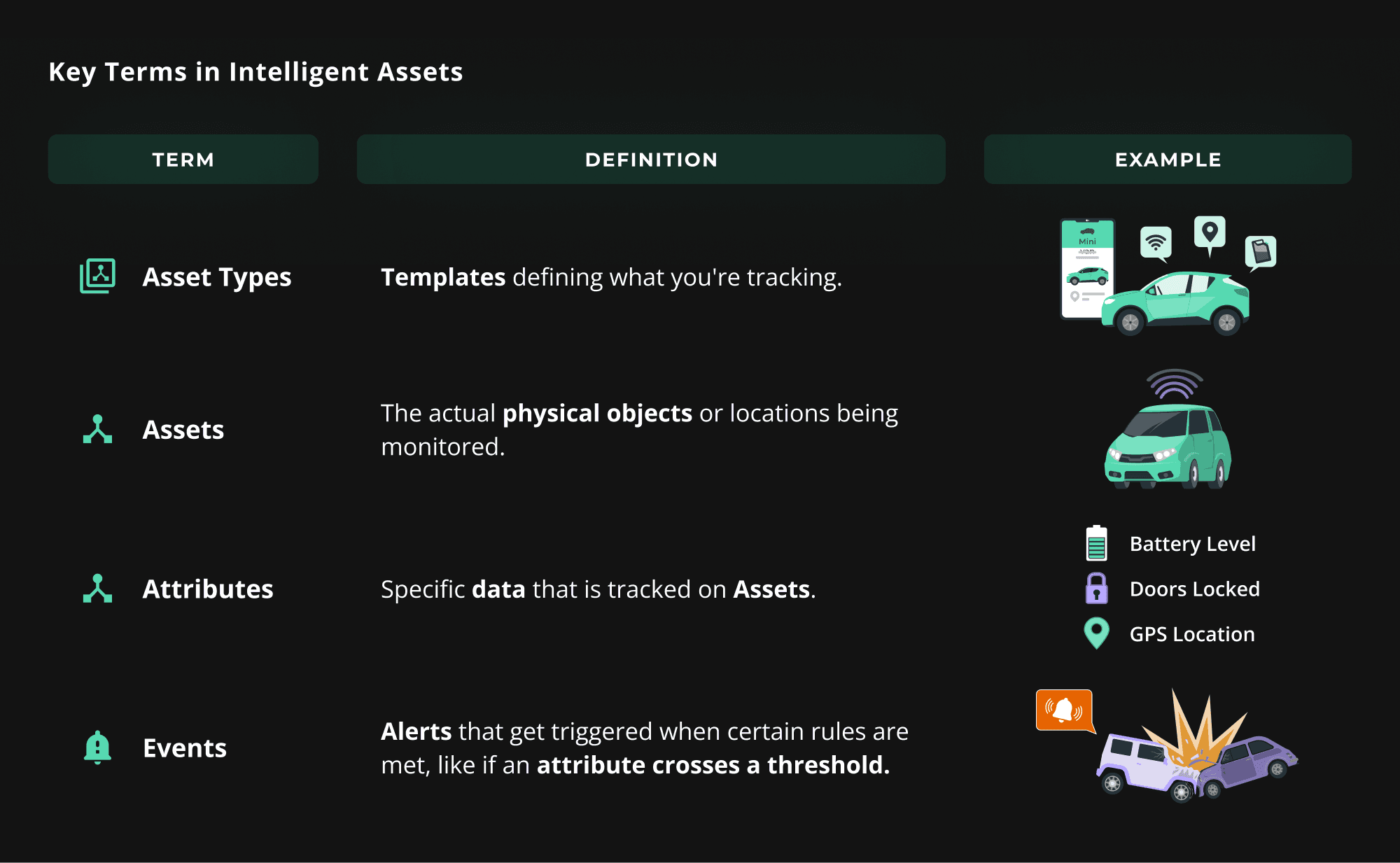
See the diagram below for key IA terms that will be referenced throughout this case study:
MY ROLE
Lead UX/UI Designer
(Planned & executed all design tasks, collaborated with stakeholders, managed design team)
TOOLS
Figma, FigJam, Figma AI, ChatGPT, Maze, Heurio, Google Suite (Docs, Sheets), Jira, Confluence, Slack
TEAM
2 Junior UX/UI Designers
1 Frontend Developer
1 Product Manager
Timeframe
6 months
The Problem
IA's old search and filtering UI made it difficult to extract actionable insights from long, dense asset datasets. Vague filter field labels, unnecessary steps, and missing filtering capabilities slowed down operations teams that needed fast, targeted problem-solving to avoid costly downtime.
The Goals
Product: Design useful, scalable filter settings patterns that can be repeated across the IA platform.
Users: Make it easier and faster for users to refine searches and isolate relevant assets within large datasets.
The Results
Business Impact
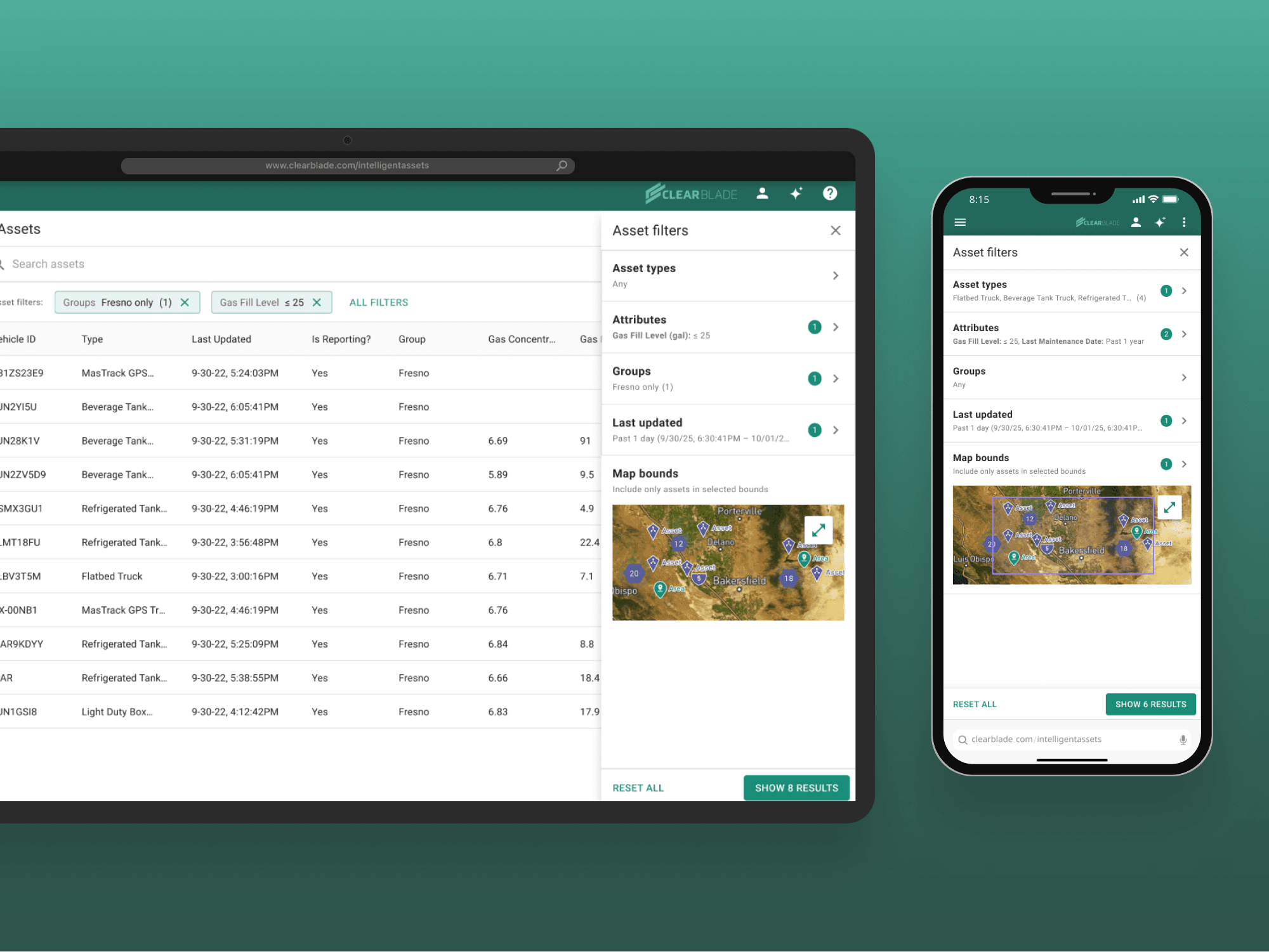
36% increase in Assets page engagement.*
22% reduction in time to isolate at-risk assets.*
Product Impact:
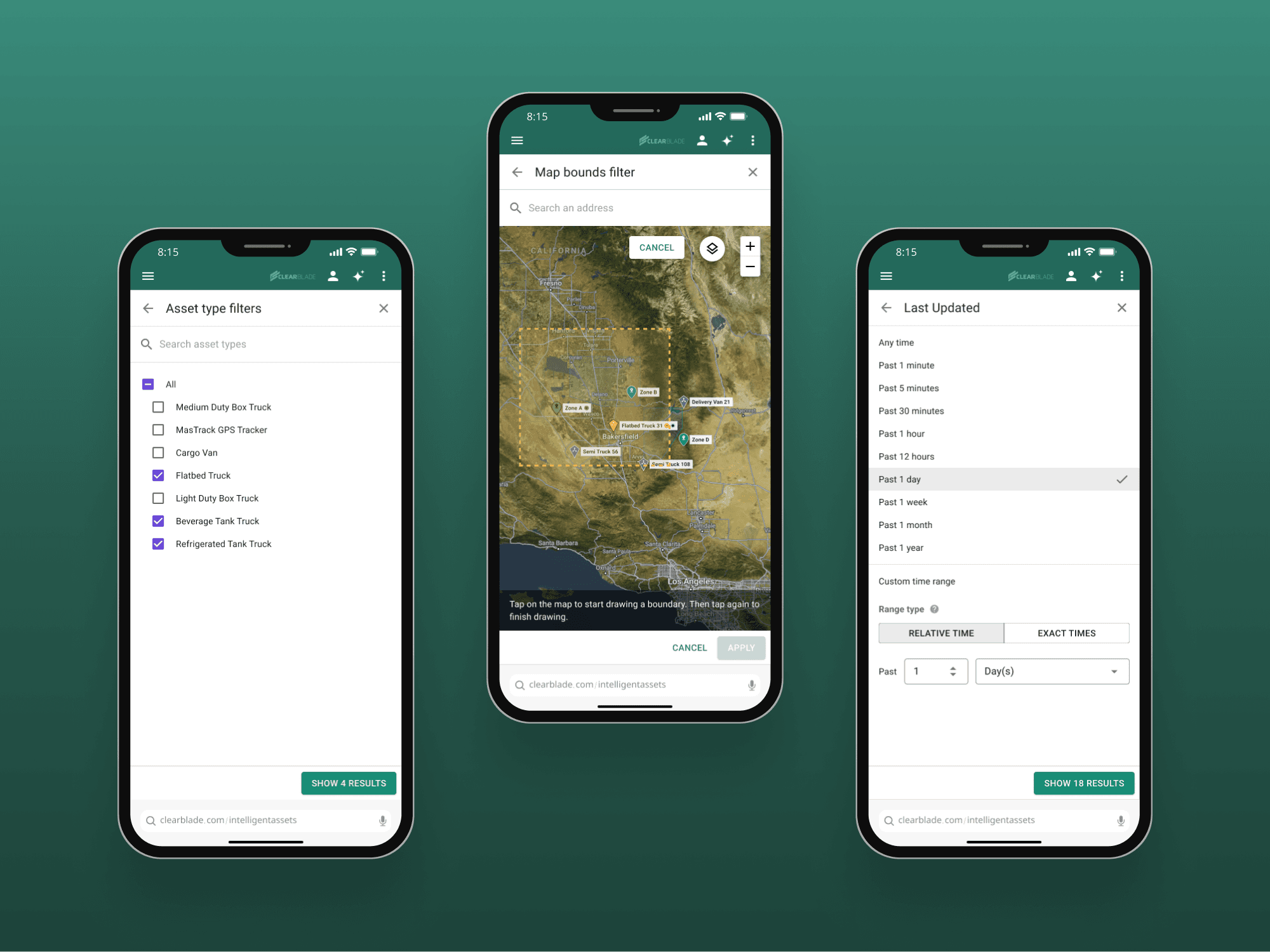
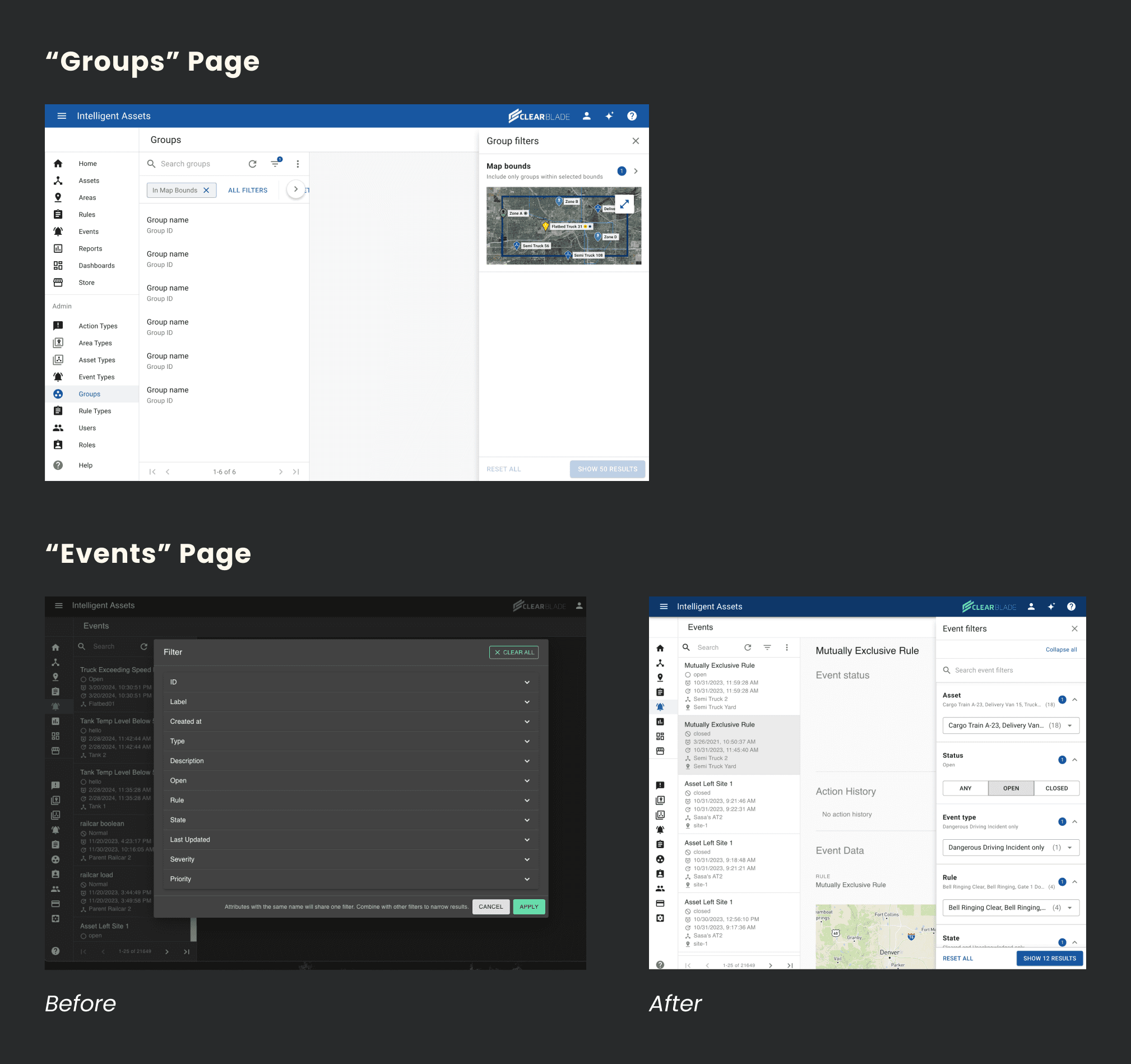
8 new reusable filter components were added to our design system, and later applied to the Events and Groups pages.
Positive feedback from key customers and stakeholders.
*Based on Google Analytics data.
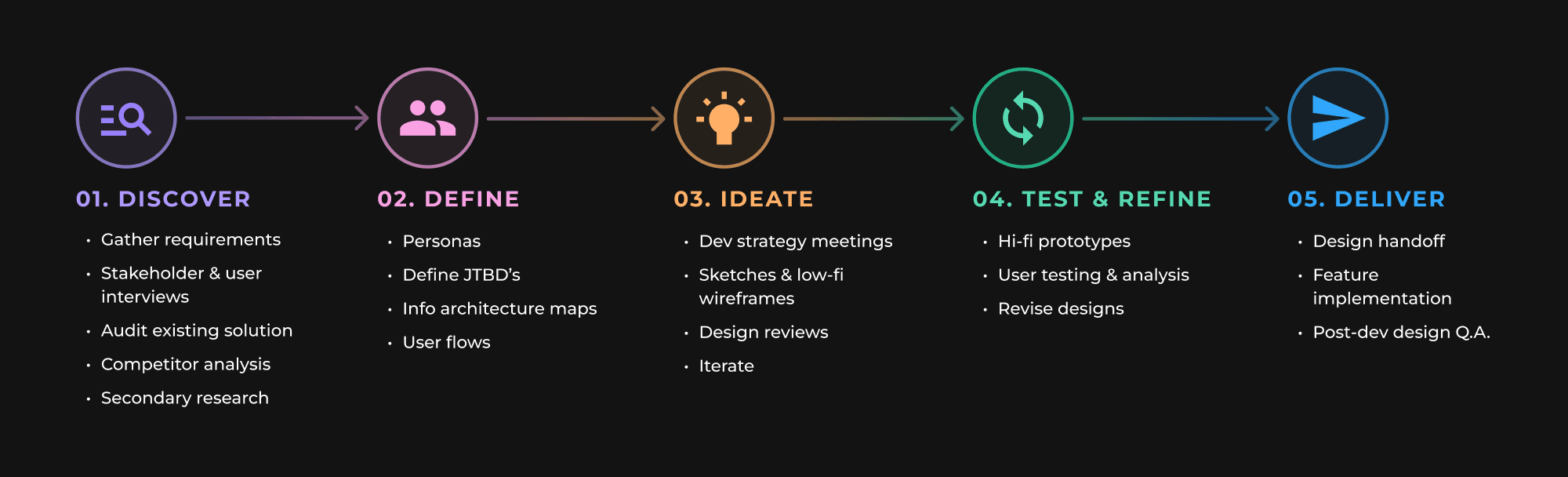
Our Design Process
Phase 1
Discover


Interviews
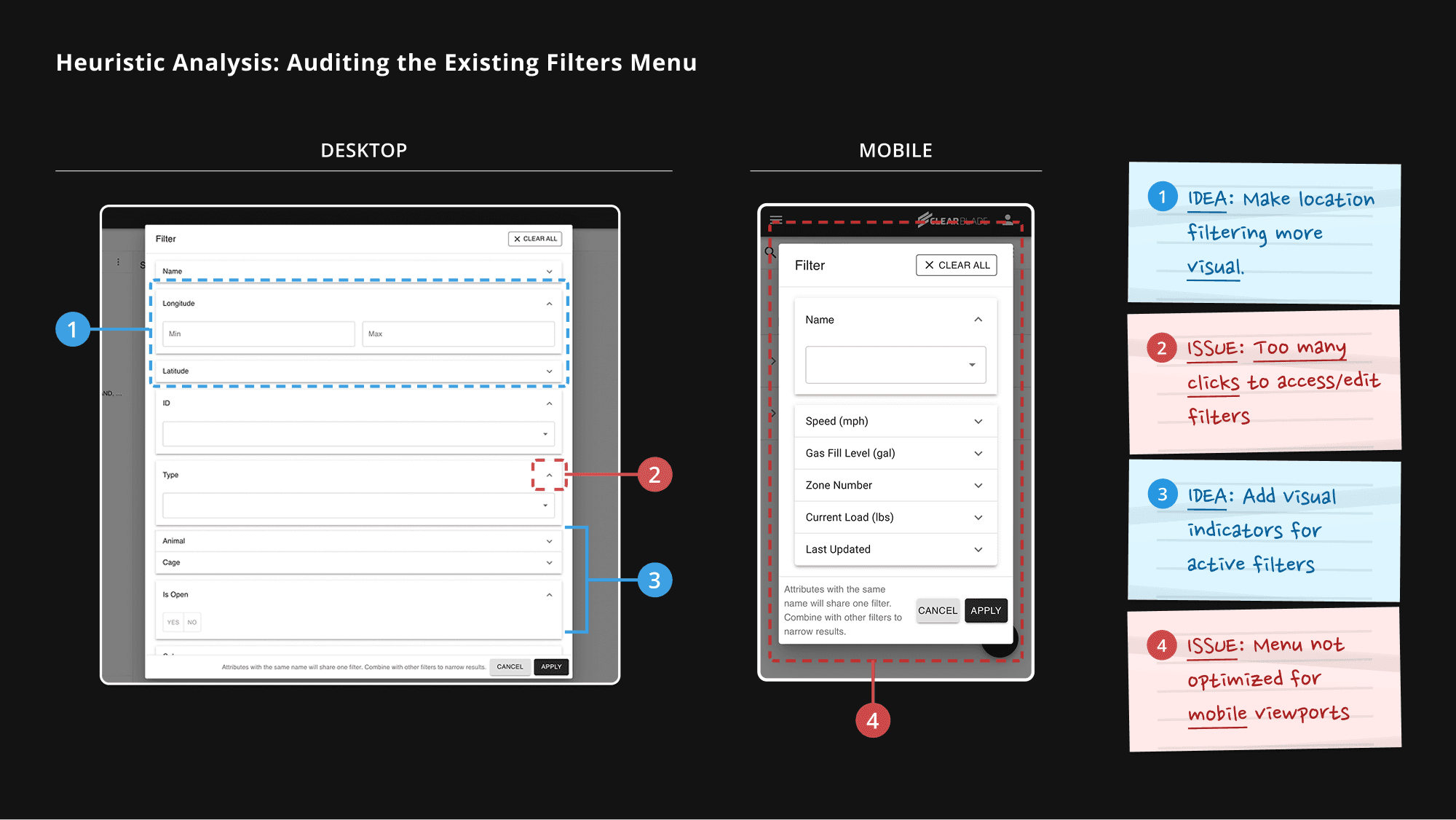
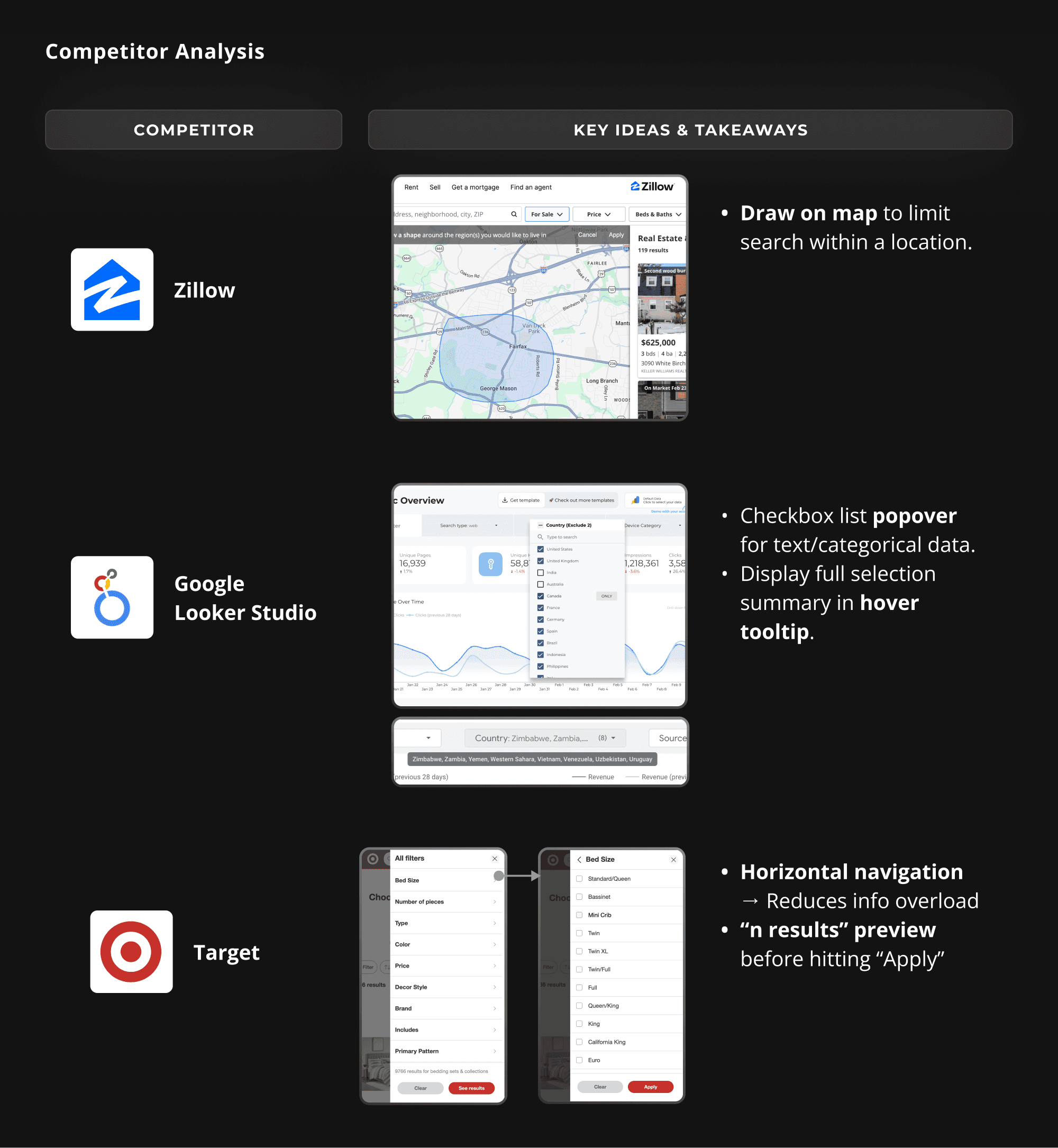
We weren't able to get direct interviews with end-users due to scheduling and time constraints. So instead, we interviewed 3 internal Services Engineers (who directly interfaced with our customers/end-users on a daily basis), and also looked for relevant insights from our repository of past user interviews.
Interview Takeaways
Phase 2
Define
Who We Were Designing For
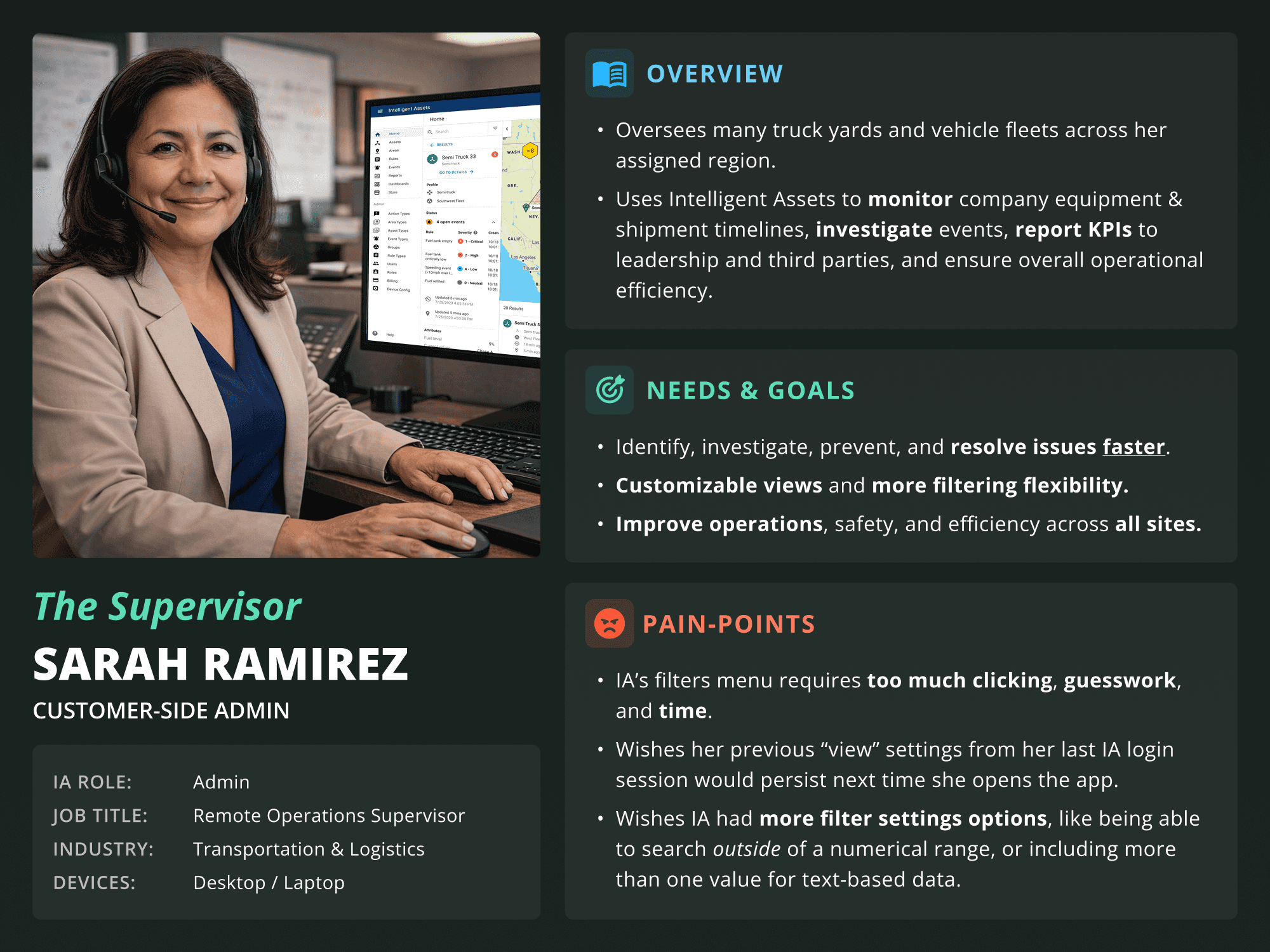
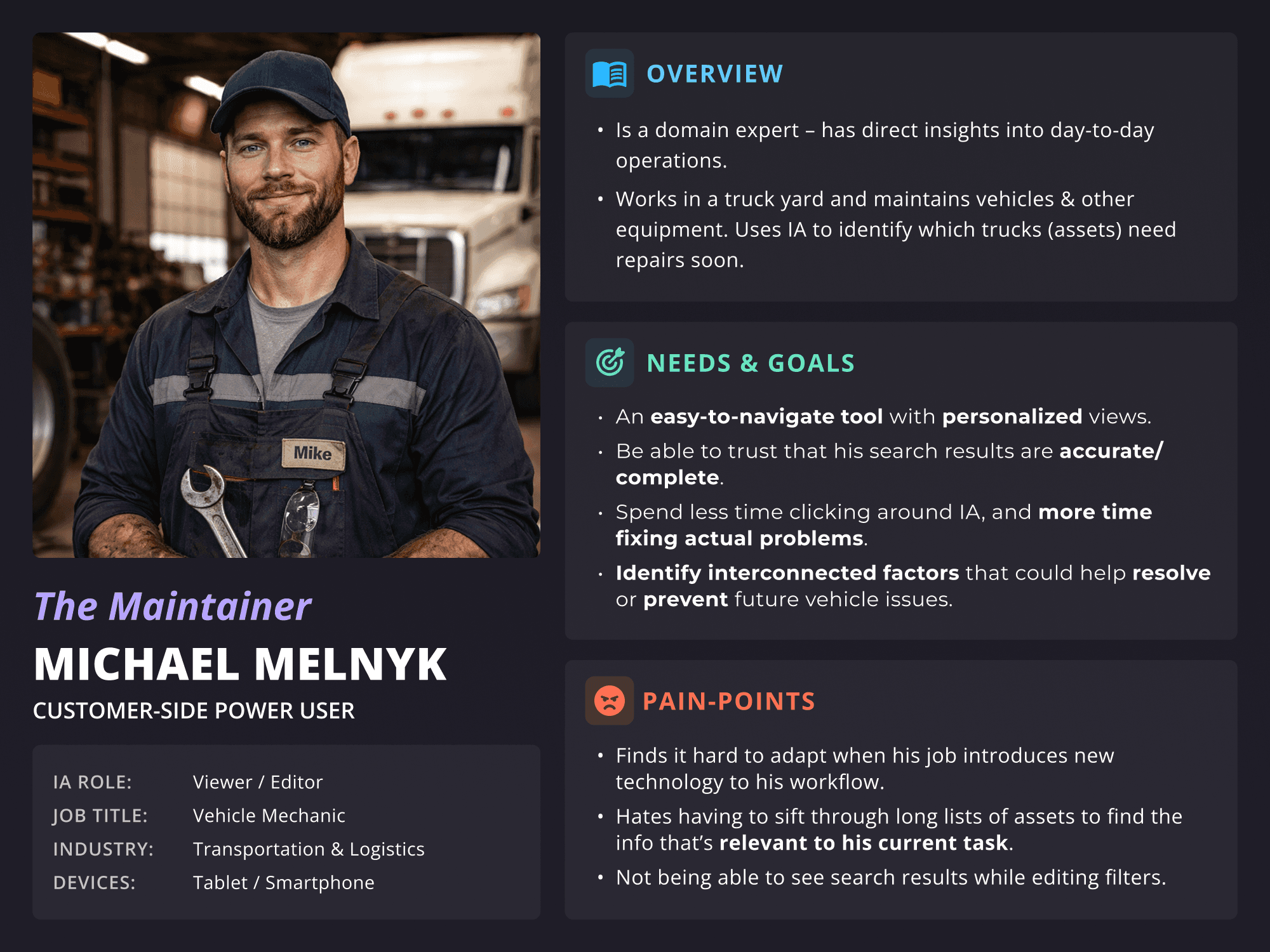
We translated our research insights into two primary personas that we expected to use search filters the most often in IA:
Sarah, The Supervisor – Represents our admin users.
Oversees several vehicle fleets across a large region. Needs to filter quickly across many asset types and groups.
Michael, The Maintainer – Represents our day-to-day power users.
Works on-site and uses IA to find nearby assets that need repairs.
Shared needs across both personas:
Combining multiple filter types to narrow results quickly.
Adjusting filters on-the-fly without losing context.
Information density > simplicity: more info visible on screen is helpful.
Info Architecture: Organizing the Data
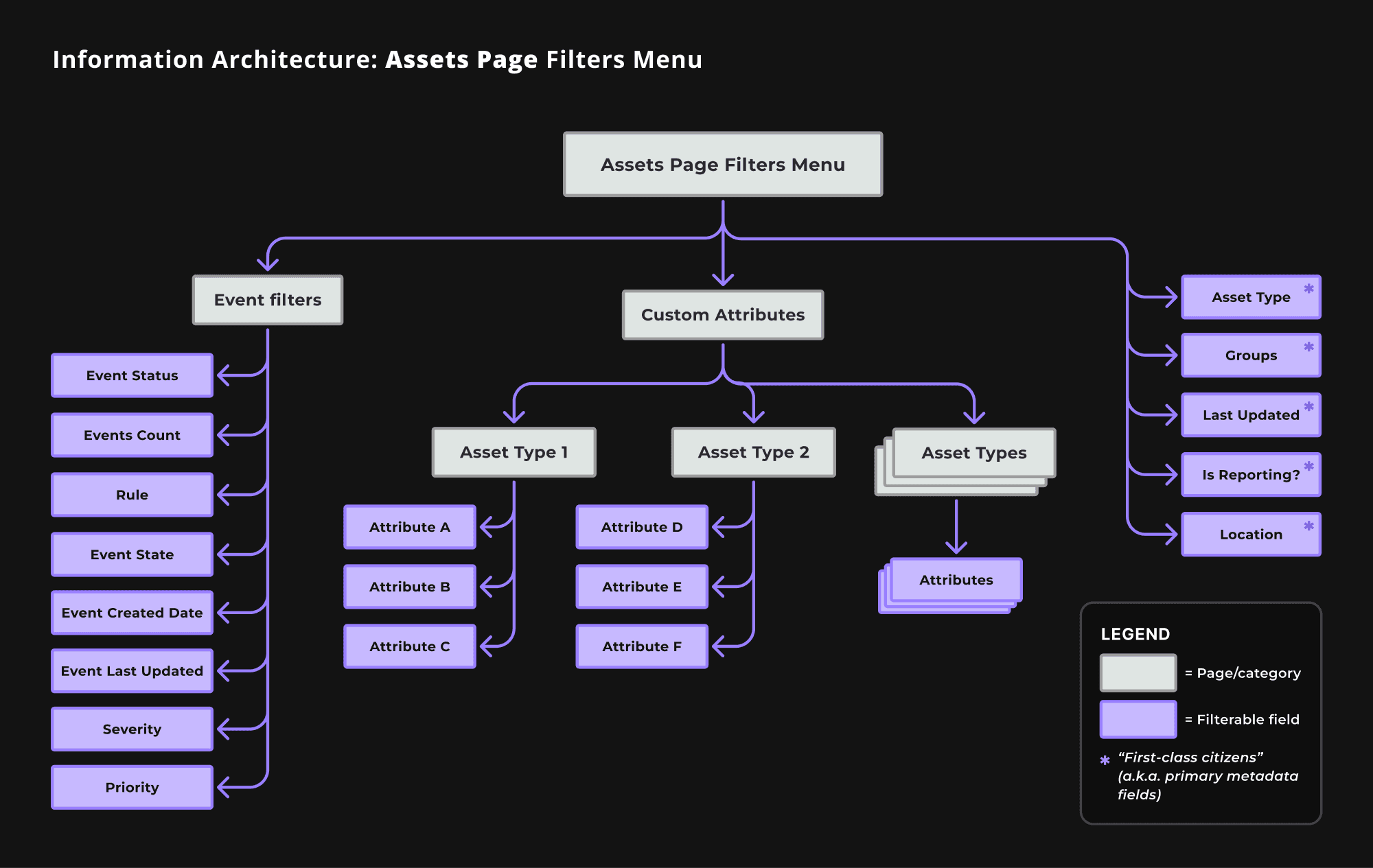
The old filters menu gave users no context about which asset type a custom attribute belonged to. This became an even bigger problem considering a single filters menu could display dozens or even hundreds of attribute filter fields.
I led the design team in diagramming the underlying data architecture of the Assets page to make these relationships visible for our larger team and internal stakeholders.
Defining the Filter Data Types
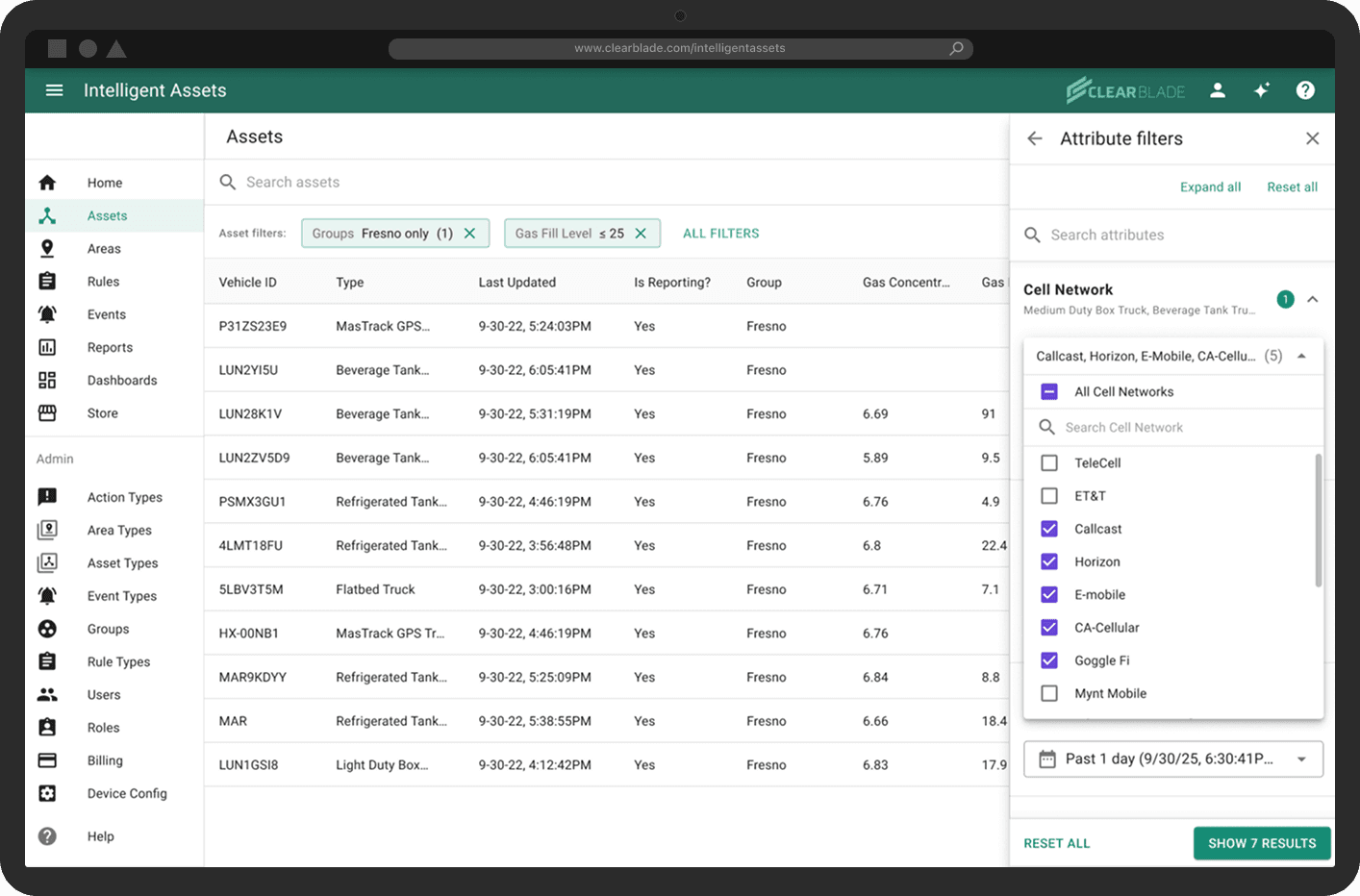
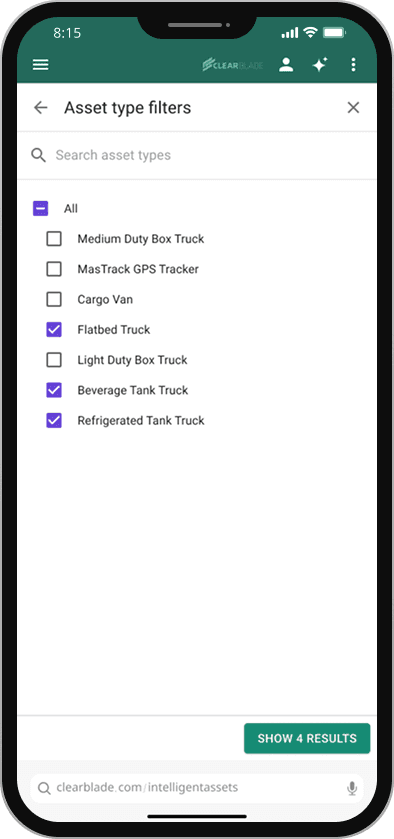
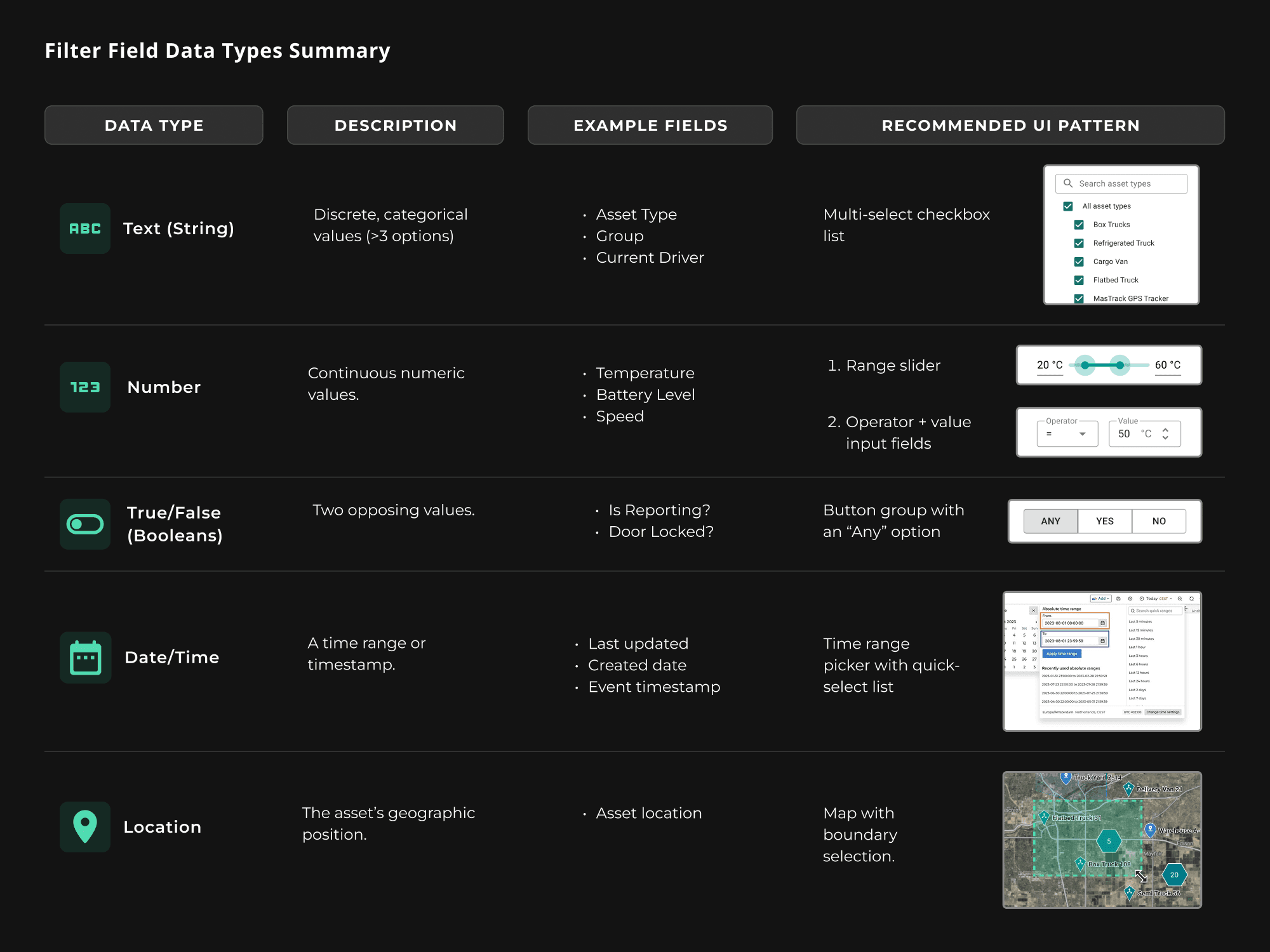
Rather than treating every filter field as a unique UI problem, I proposed we map all fields to a set of core data types. This unlocked a much more scalable design approach.
Why this mattered: One UI pattern per data type = fewer components to design and build, and a more consistent user experience.
Mapping User Flows
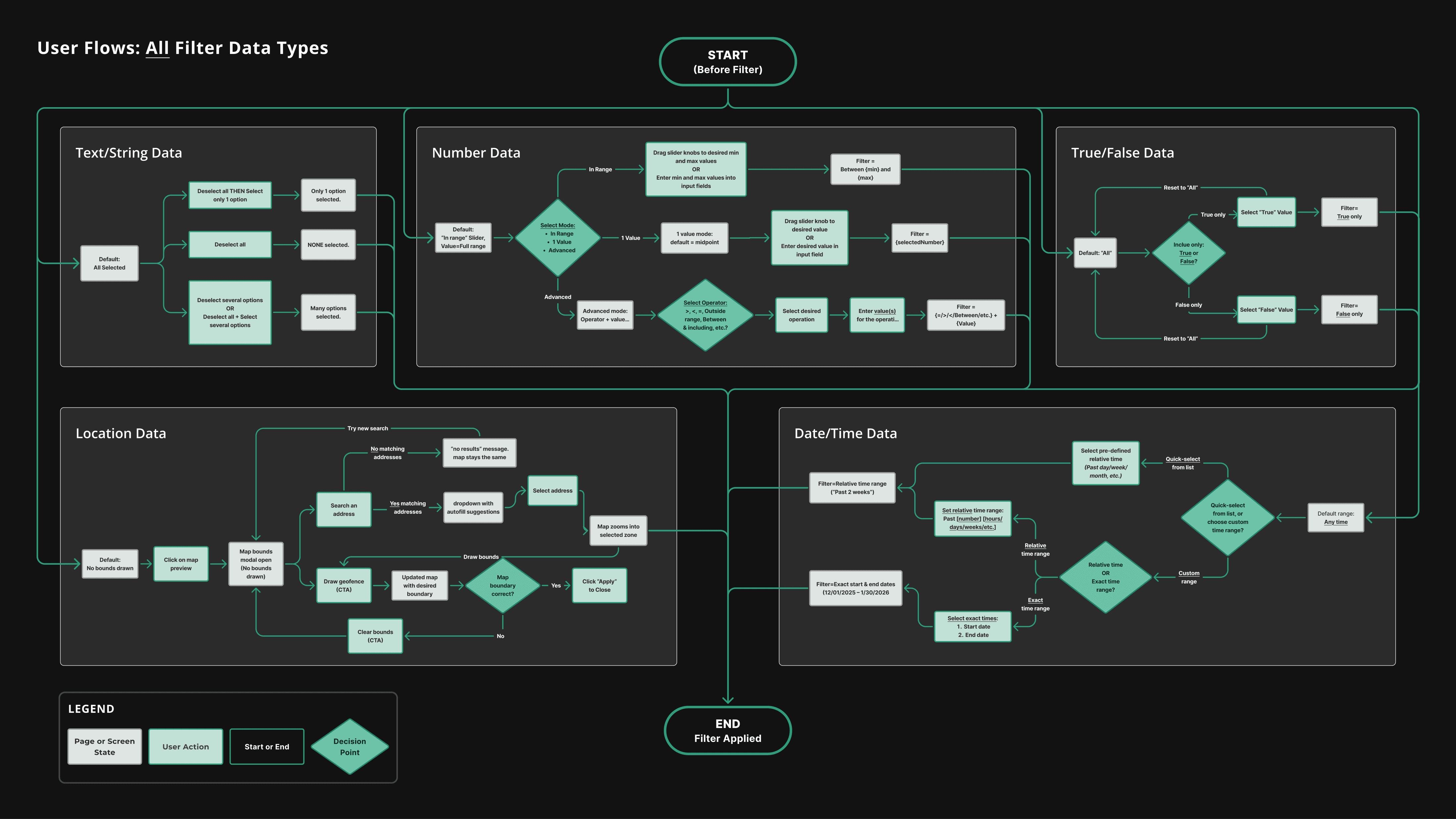
For each data type, we mapped out every possible interaction state and flow, making sure that:
All MVP business requirements were addressed.
Users would never hit a dead end while using any filter field setting.
Click here to see all user flows in full detail.
Phase 3
Ideate
Our Ideation Process
Designing a complex feature required a lot of rapid iteration and constant collaboration across teams. These were the essential parts of our workflow:
Design team critiques – My junior designers and I brainstormed multiple concepts for each user story, discussing the pros and cons of every idea in detail.
Check-ins with the devs – We regularly convened with the front-end engineer to confirm design feasibility and re-think solutions whenever it seemed like the development effort would outweigh the expected user value.
Monthly cross-functional design reviews – We led company-wide UX/UI reviews with engineering, sales, services, and C-suite leadership to gather feedback and confirm user goals/needs with the customer-facing teams.
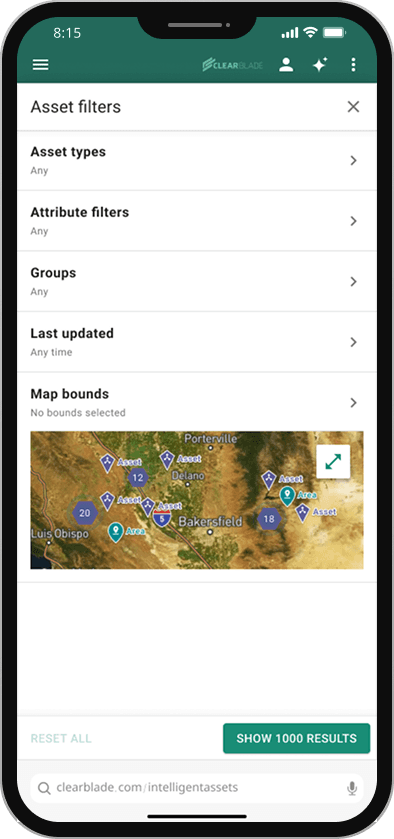
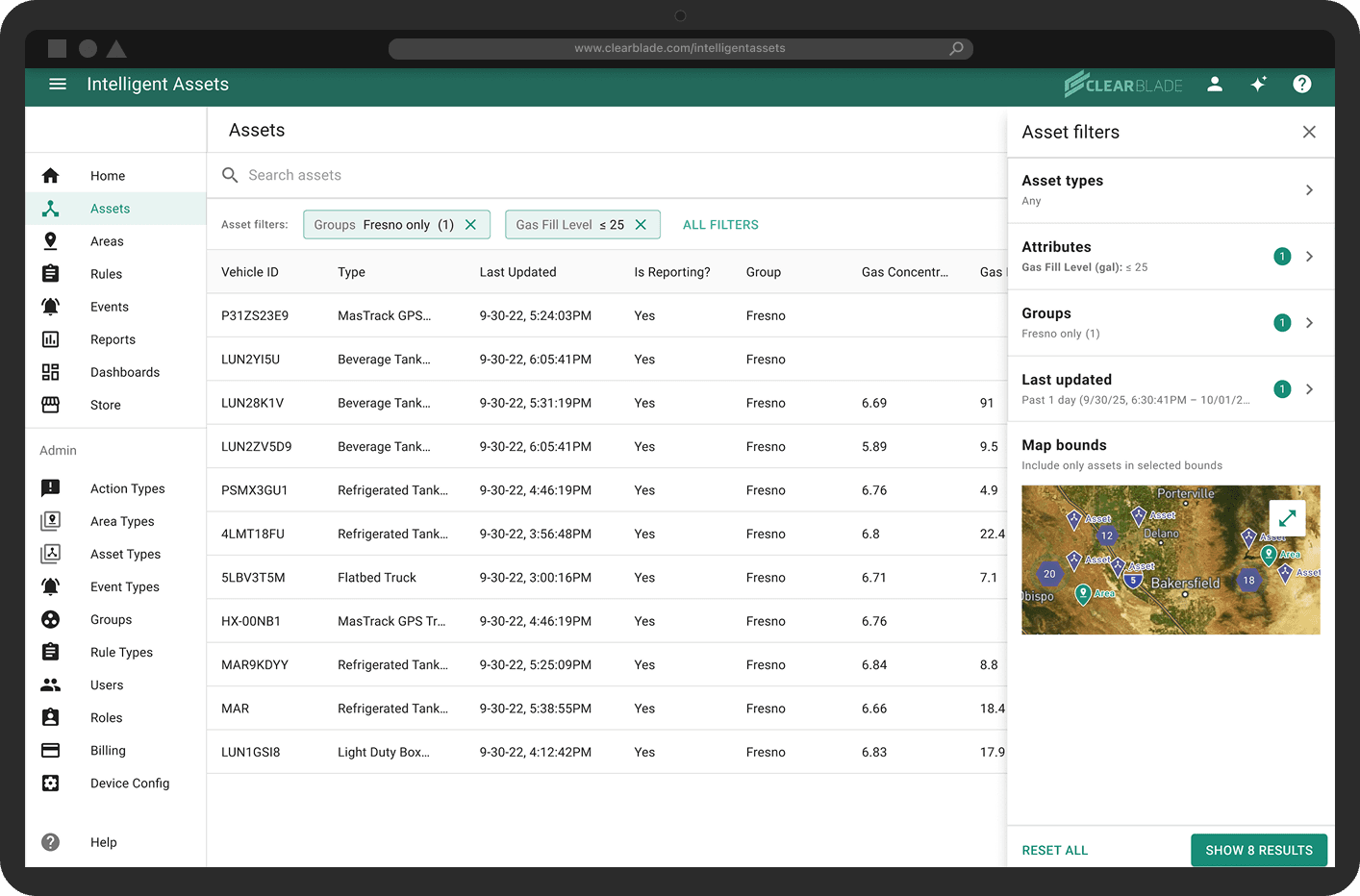
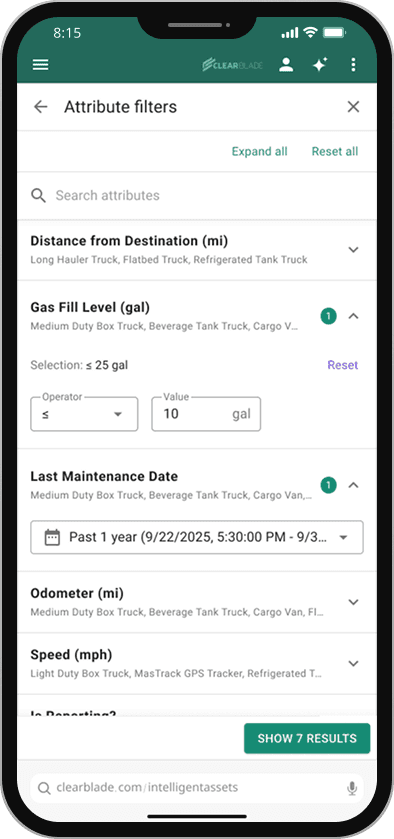
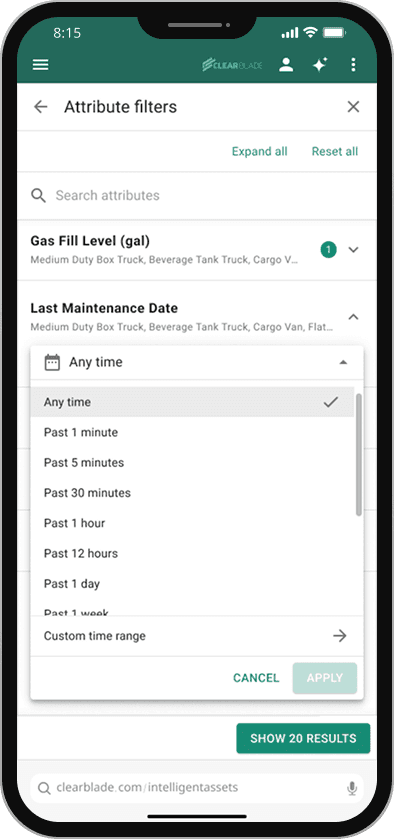
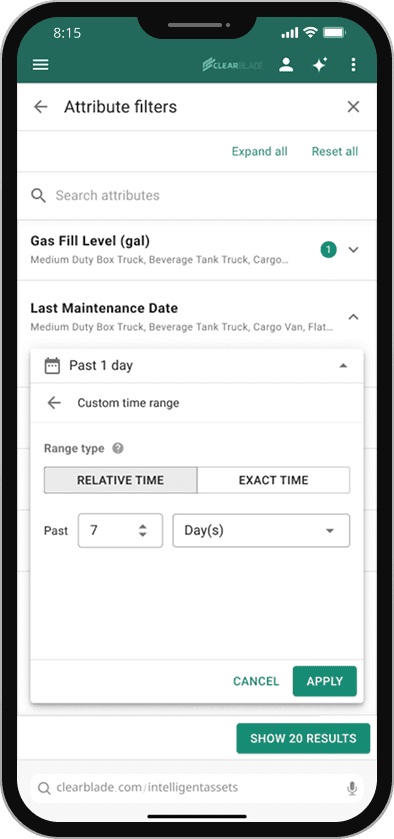
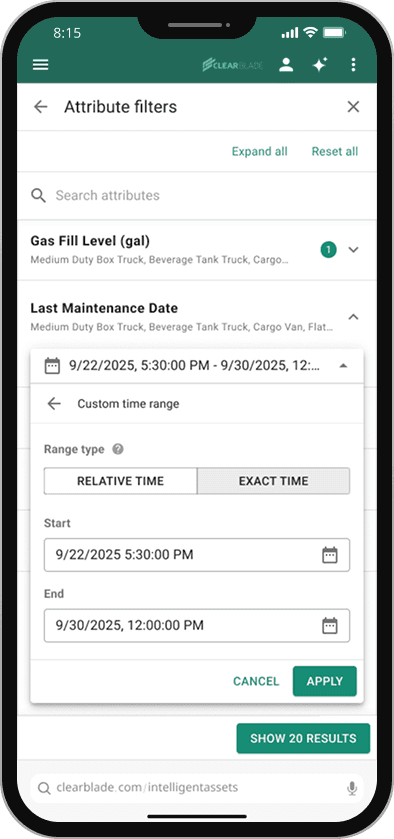
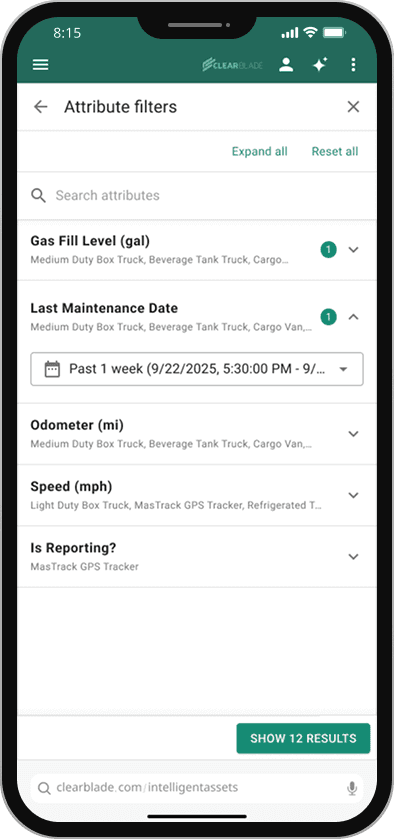
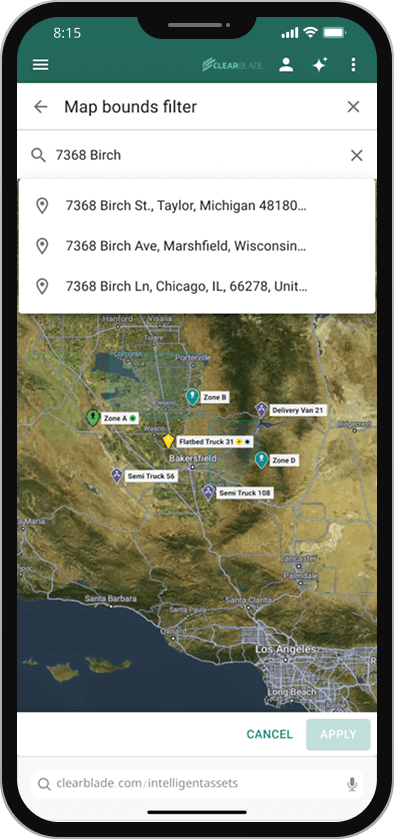
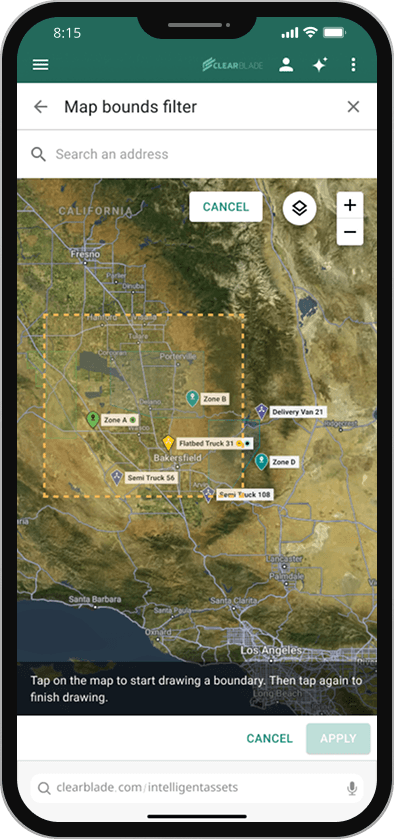
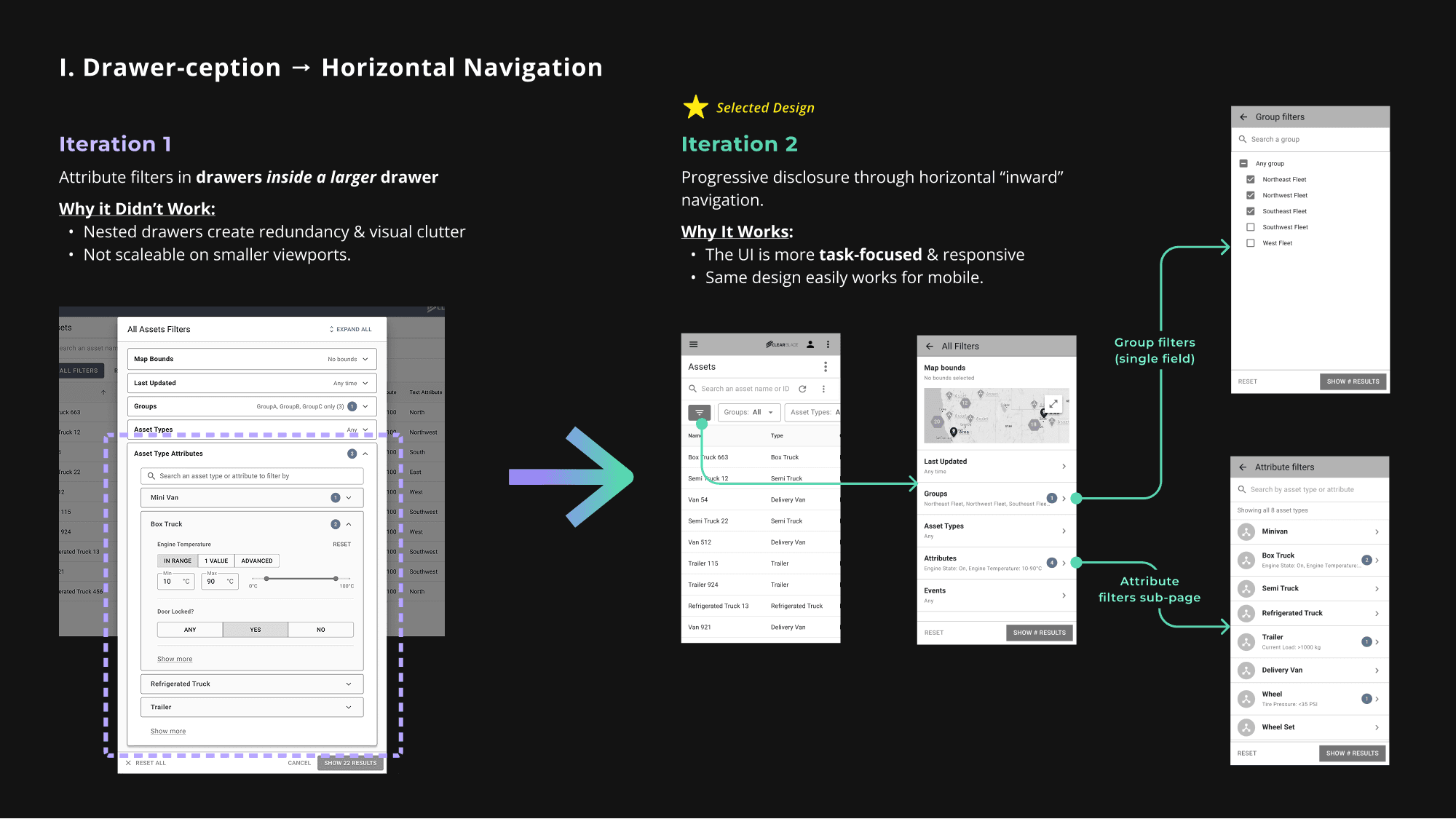
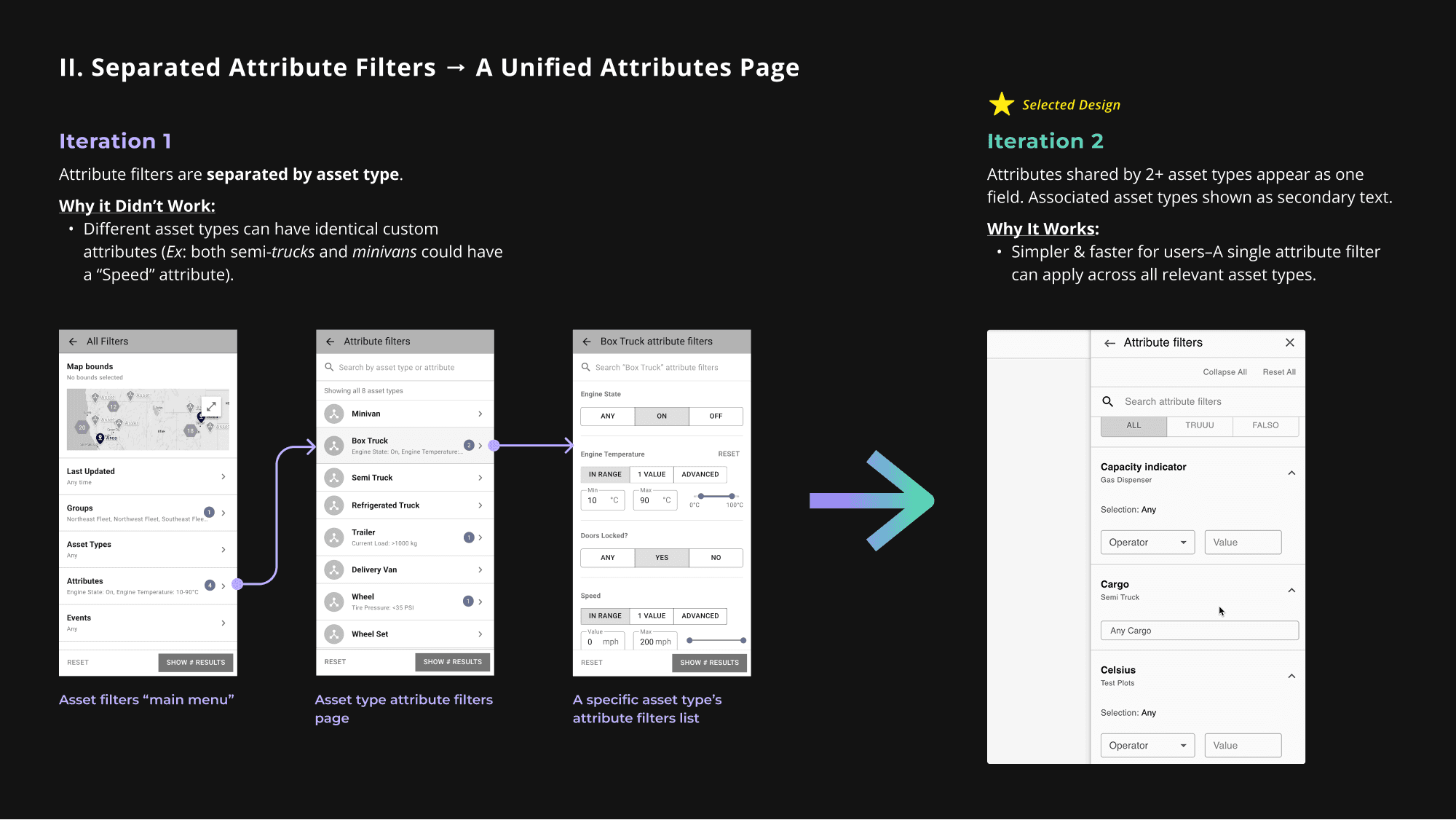
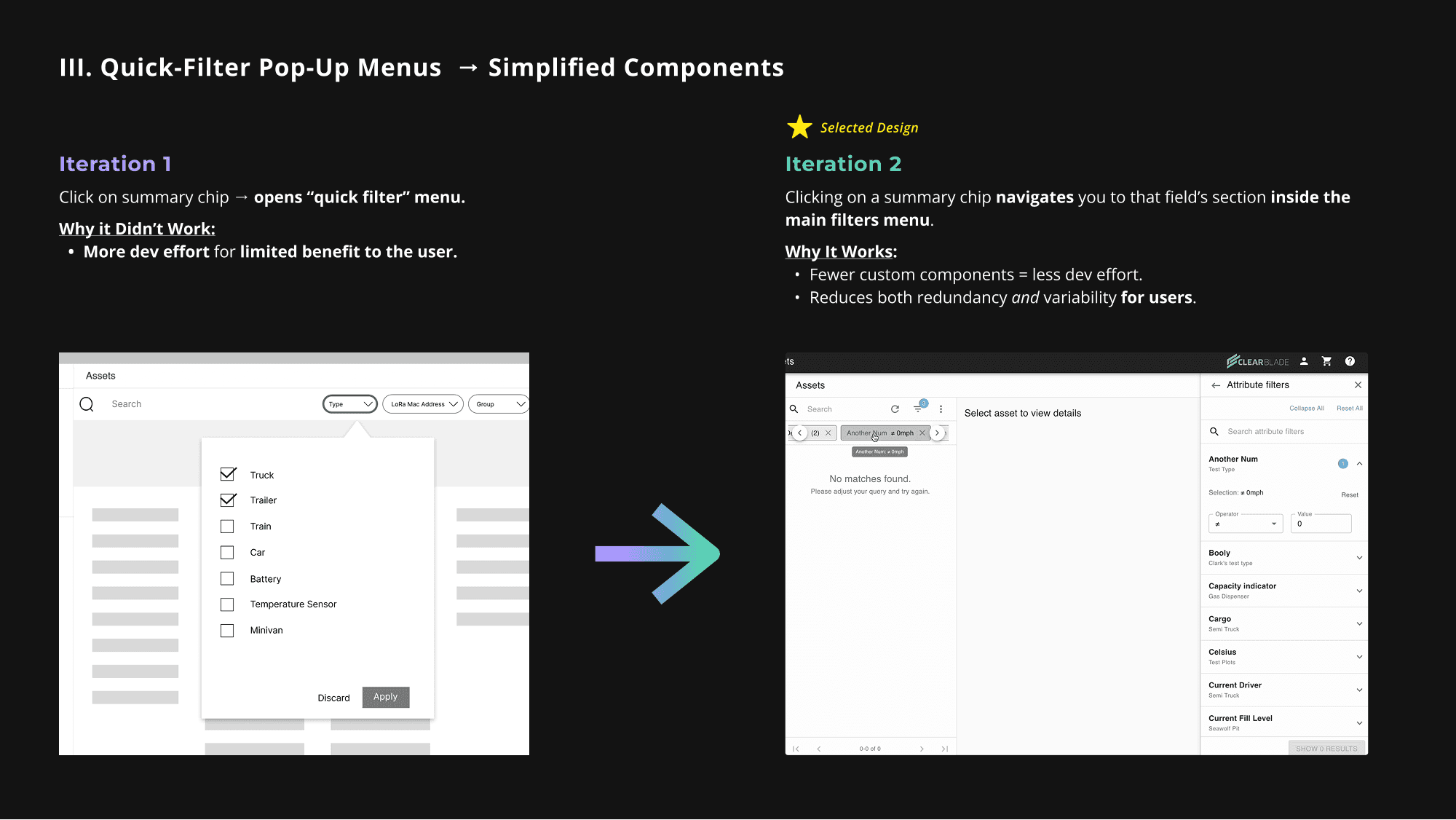
We went through several rounds of iterations throughout the project. Click on the images below to see how our solution evolved over time, and why we chose the final iterations.
Phase 4
Test & Iterate

Results from User Testing
Quantitative Results
Qualitative Results (User Feedback)
🛠️ Area for Improvement:
“I’m leaning towards questioning whether Group and Asset Type [filter summary chips] should always be visible. It seems like you’d just want nothing visible if you have no filters being applied.”
– Tester #3
✅ Positive Feedback:
“The complexity was revealed gradually, so I didn't feel overwhelmed at any point.”
– Tester #9
Post-Test Changes
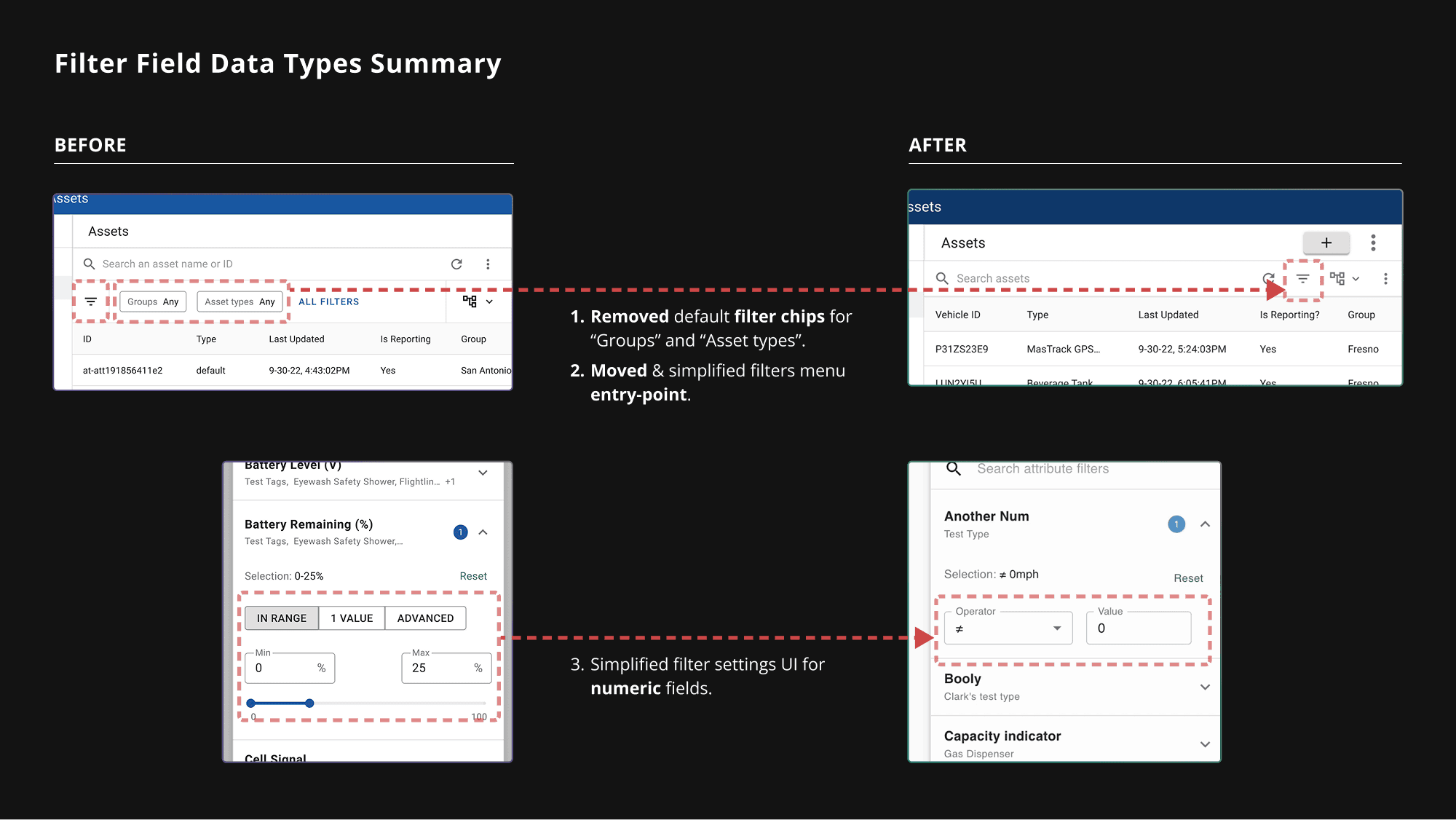
After analyzing our usability test and survey results, we prioritized making the following changes to our designs:
Simplified the number filter design – more flexible and easier to scan than a limited set of fixed options.
Removed default filter chips – Having the "Groups" and "Asset Types" be always visible was misleading when no filters were applied. We removed them so the summary row only shows chips when filters are actually added.
Improved entry-point discoverability – We moved the filters icon from the left side to the right, as users looked for it nearby the other top-level actions on this side of the page.
Phase 5
Deliver
The Design Handoff
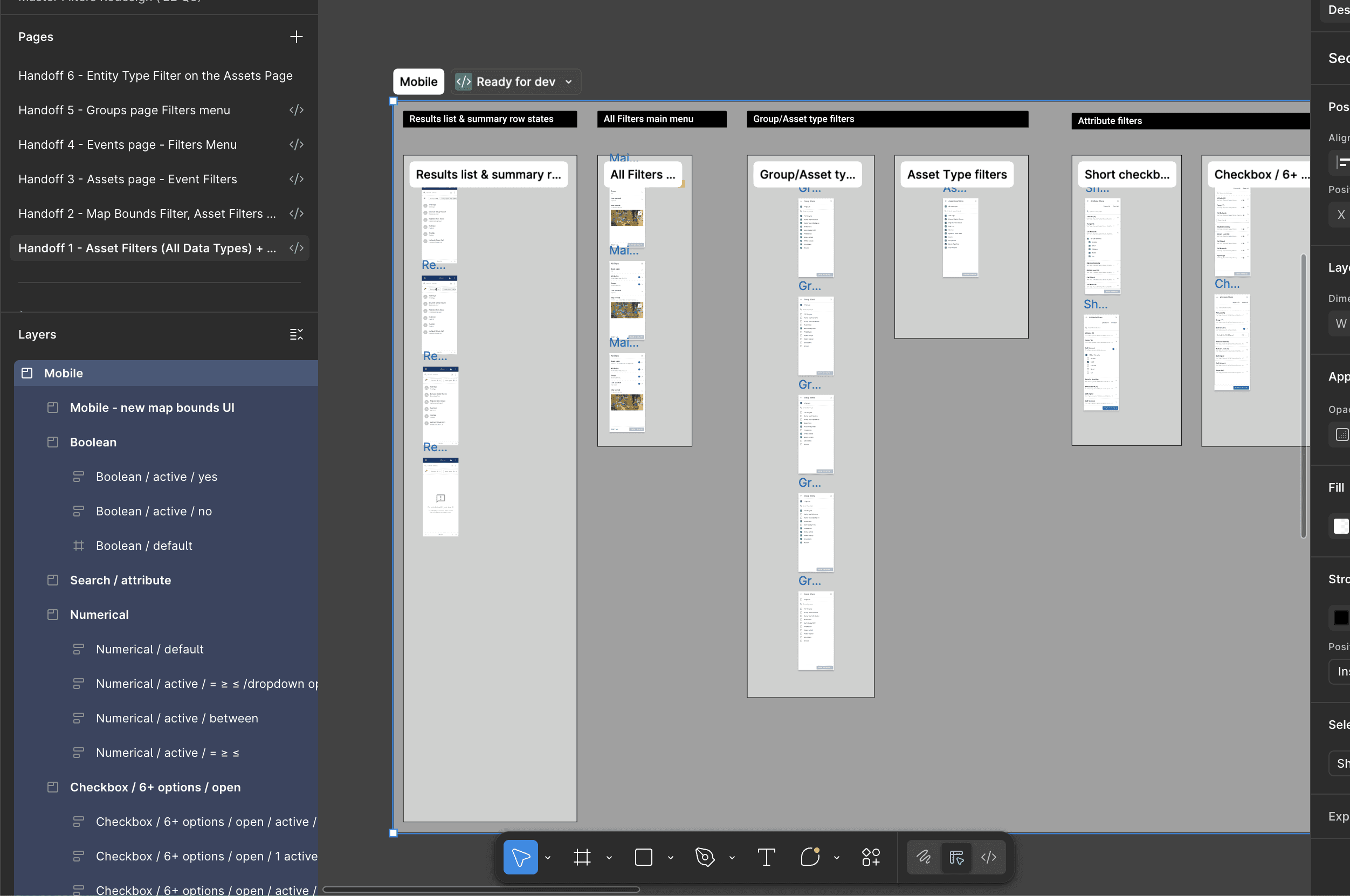
We kept the developer in the loop throughout our design process so nothing in the final handoff would come as a surprise. Since we had been checking in with her about design feasibility all along, we avoided having to revise our planned solutions during these final stages.
Our Handoff Structure:
Delivered in phases based on the developer's planned build order.
Used consistent naming conventions across all layers and components.
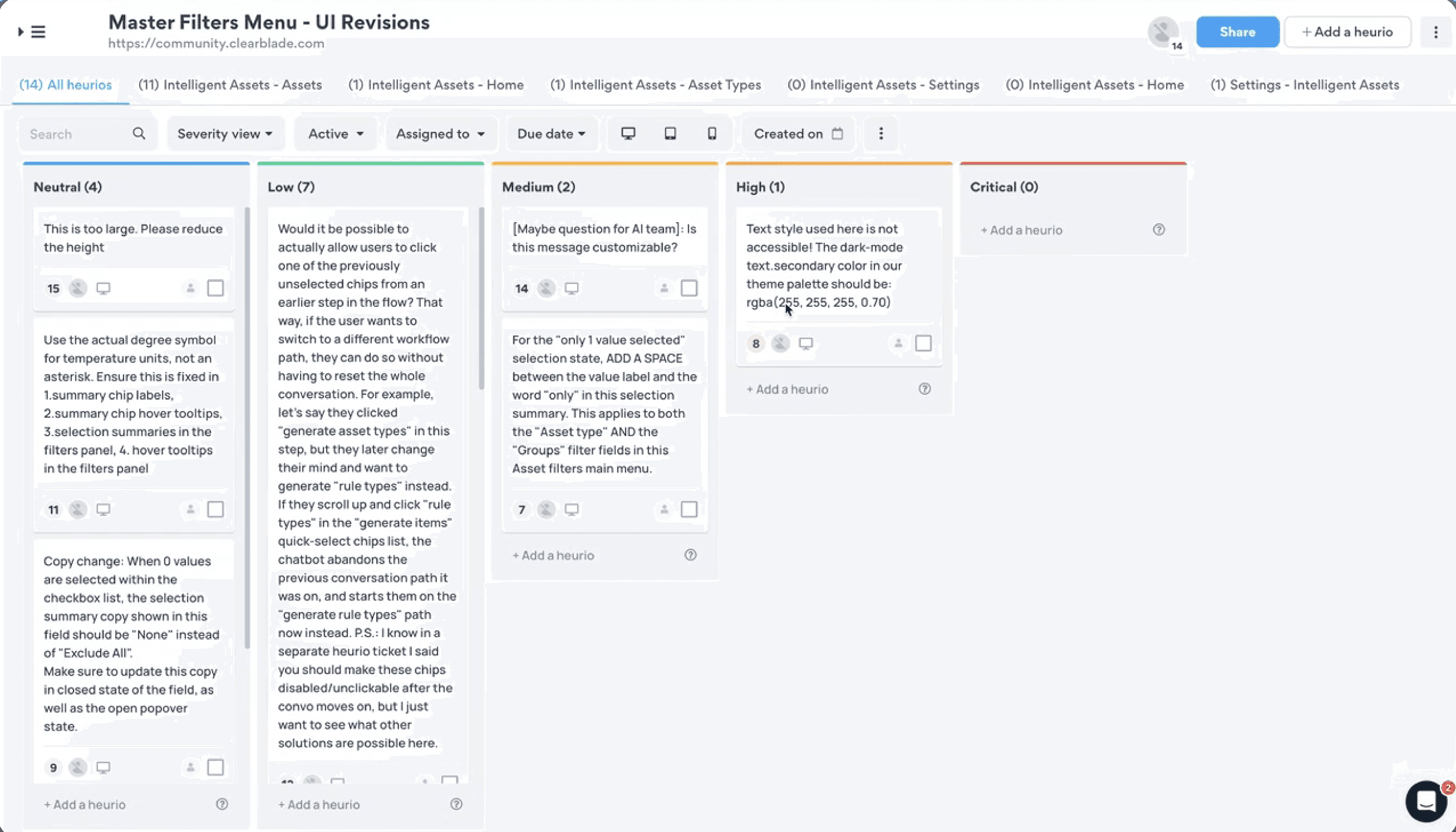
Included thorough design annotations and UI copy guidelines with assigned priorities, so the developer knew what was critical vs. nice-to-have.
Held a handoff meeting to walk the dev through the Figma file and answer any questions before implementation began.
The result: A smoother collaboration process, fewer misunderstandings and development blockers, and accurate implementation of the final designs.


Conclusion
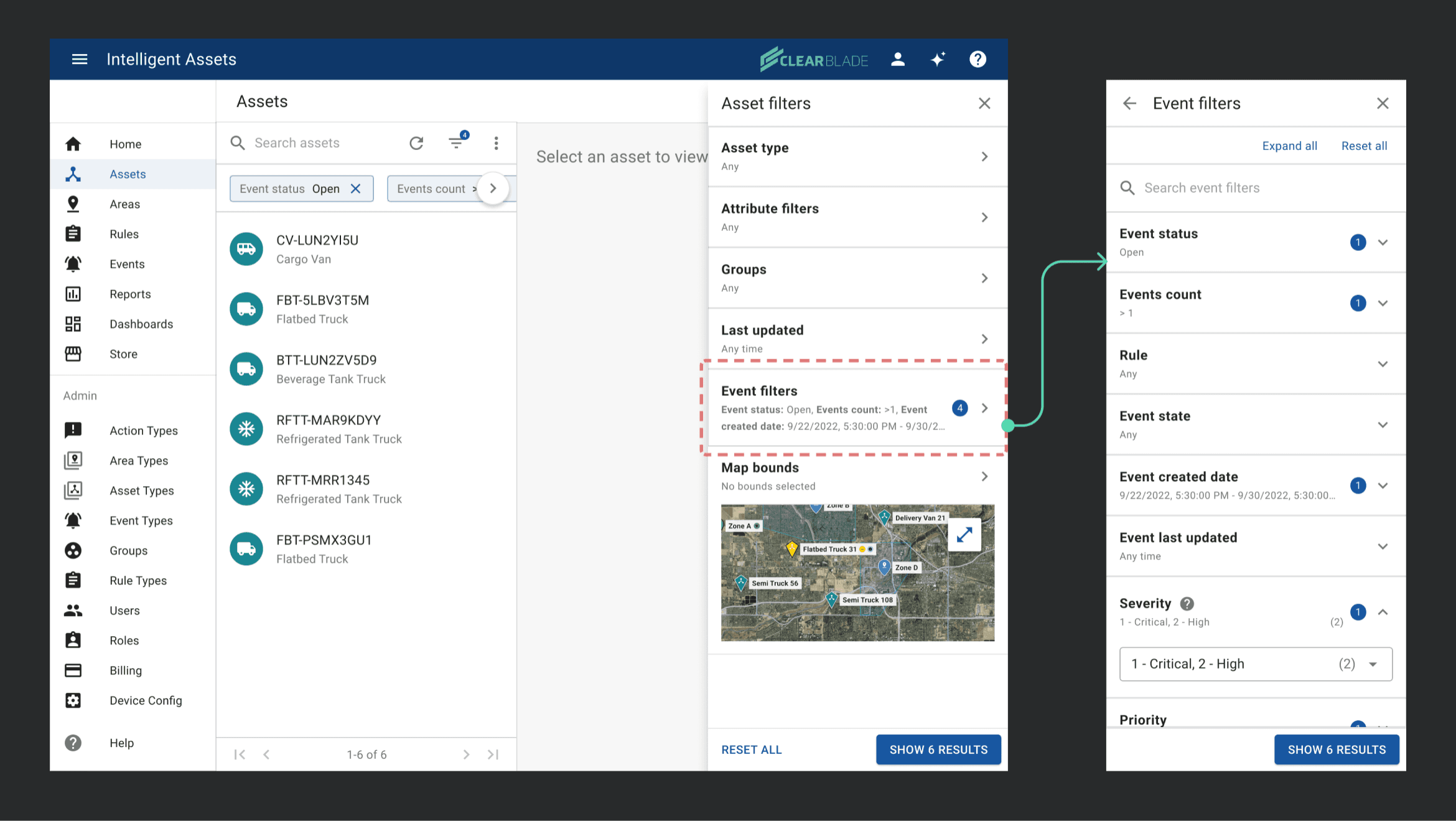
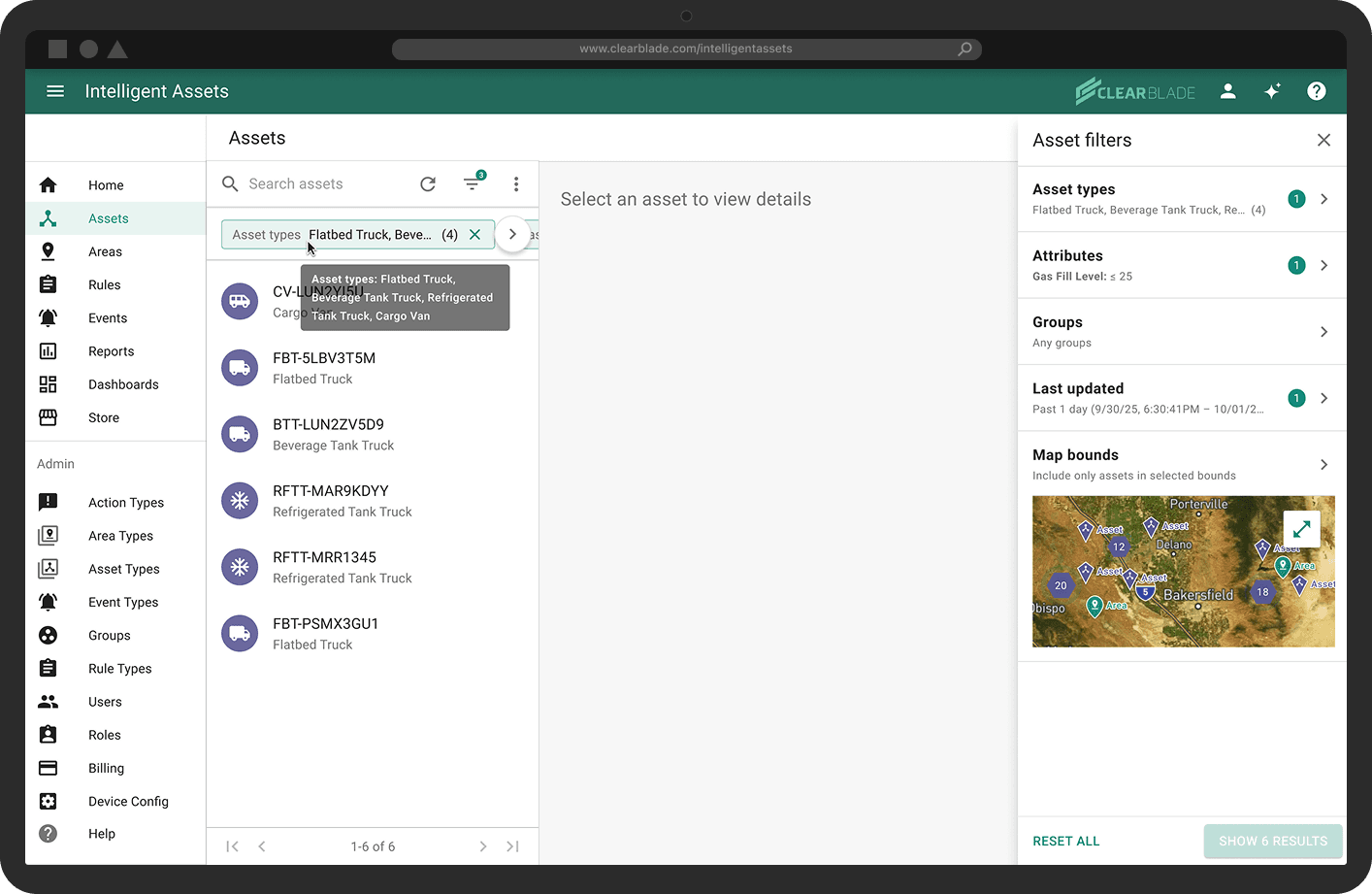
The Final Results